



February 28, 2023
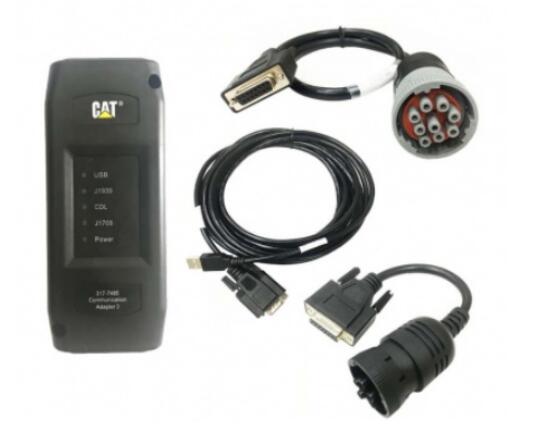
Caterpillar Comm Adapter III – diagnostic scanner interface is a cat group dealer workshop diagnostic tool built to work with Caterpillar heavy vehicles and Caterpillar engines. It is the latest generation of the cat Communication Adapter group and replaces the cat Comm Adapter II & the old 466-6258 and 317-7487 tool number.
Caterpillar scan tool includes:
CAT Comm Adapter III (part # 317-7485)
CD with the drivers
USB Cable (From device to your computer)
J1939/J1708 Cable (from device to your truck)
Hard Shell Case with foam inserts
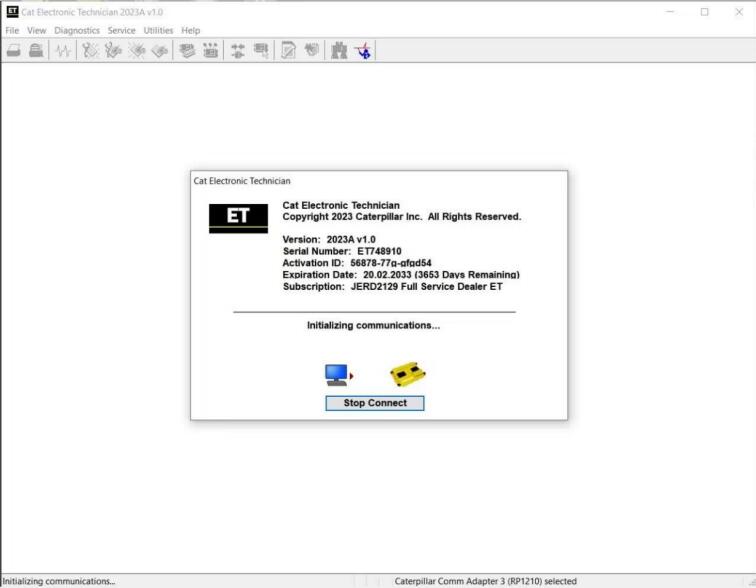
Caterpillar ET 2023A
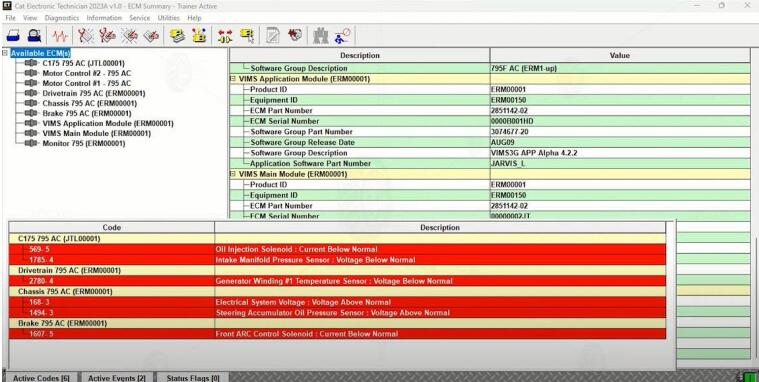
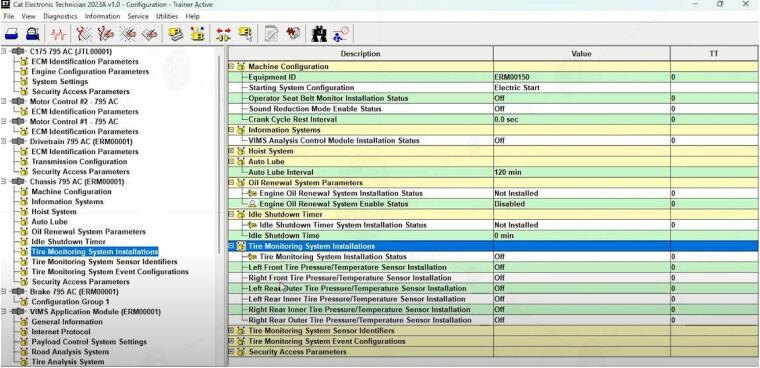
Caterpillar Electronic Technician (Cat ET) is a service tool designed to run on a personal computer (PC) under Microsoft Windows. It will communicate with the Electronic Control Modules (ECMs) through a communication data link thus allowing you to diagnose existing and potential problems, configure the product and obtain data for analysis.
With the CAT Diagnostic Tool, you can:
View active and logged diagnostics
View events where irregularities occurred and were logged by the ECM
View the status of a group of parameters (temperatures, pressures, etc.) simultaneously
Record and log performance data
Graph a group of status parameters
View the current configuration of an ECM
Change ECM configurations
Perform diagnostic tests
Perform calibrations
Print reports and diagnostic results
For some machine and engine products, additional functionality has been included with the service tool program
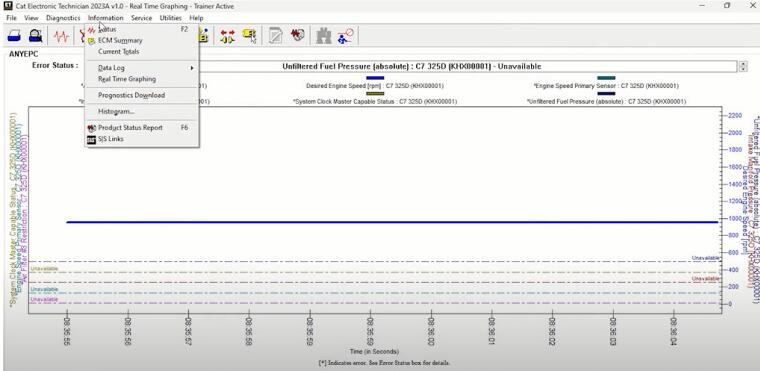
Caterpillar ET 2023A (replaces CAT ET 2022A, 2021A,2019C) Electronic Technician Diagnostic Software
Brand: Caterpillar
Region: WorldWide
Language: English, Chinese, Danish, French, German, Italian, Japanese, Portuguese, Russian, Spanish
Compatible OS: Windows 7 32 bit, Windows 7 64 bit, Windows 8/8.1 32 bit, Windows 8/8.1 64 bit, Windows 10 32 bit, Windows 10 64 bit
Publication date: 03.2023 year
Latest Caterpillar ET 2023A Software to work with CAT/CAT3 Truck Scanner
With one free activation, can send software online
PC, Communication Hardware, and Cable Requirements
To run the service tool, the next PC, communication hardware, and cable requirements must be met. NOTE: The minimum PC Configurations should not be used as a standard when buying new personal computers for service tool purposes. If the existing equipment meets these minimum requirements, it will run the service tool.
PC Requirements
Recommended Configurations
PC containing a 2.0 GHz dual-core processor
3GB RAM
3GB of the available hard disk drive
DVD-ROM drive (optionally)
15.4-inch XGA Screen (1280×1024 compatible)
Microsoft Windows™ 7 Professional or Windows 8 Professional, Windows 10 Professional (Not tested with Home Edition) (Note: Windows 8 RT is not supported)
RS232 port with 16550AF UART or compatible (for use with Comm Adapter II)
USB 1.1 or 2.0 port (for use with Comm Adapter 3)
Ethernet RJ45 connector
Built-in pointing device or mouse
For security purposes, Microsoft Internet Explorer version 11 or newer or Microsoft Edge is recommended.
Note: The most recent version of Microsoft Internet Explorer may not be validated to work with the service tool.
Caterpillar electronic technician 2021A with WinFlash future is an updated version of the caterpillar dealer diagnostic software that can help technicians to diagnose existing and potential problems with their electronically controlled Caterpillar Engines and Machines.
To get the vehicle information the Cat ET software must be connected to the Electronic Control Module (ECM). For this purpose, you need a suitable diagnostic link adapter (DLA), for instance, Genuine CAT Comm Adapter III .
The laptops with ARM CPUs (Snapdragon 8cx, Microsft SQ1, etc) type are not supported!
Microsoft ended extended support for Windows 7 as of January 2020. The CAT ET service tool no longer supports Windows 7 as of the 2020B release. The installation is still possible, but we’re not able to guarantee the stable work of 2020B or later versions.
The list of supported CAT machines and engines can be found below:
Engines:
Electric Power
Electric Power Generation
Industrial
Marine Power Systems
Oil and Gas
Machines:
Articulated Trucks
Asphalt Pavers
Backhoe Loaders
Cold Planers
Compactors
Dozers
Drills
Excavators
Feller Bunchers
Forest Machines
Forwarders
Harvesters
Hydraulic Mining Shovels
Knuckleboom Loaders
Material Handlers
Motor Graders
Off-Highway Trucks
Pipelayers
Road Reclaimers
Site Prep Tractors
Skid Steer and Compact Track Loaders
Skidders
Telehandlers
Track Loaders
Underground – Hard Rock
Underground – Longwall
Underground – Room and Pillar
Utility Vehicles
Wheel Dozers
Wheel Excavators
Wheel Loaders
Wheel Tractor-Scrapers
What’s New – 2022A
Microsoft® Windows™ 11 Compatibility
Service tool testing has been performed and the service tool is compatible with Windows 11.
ECM File Replacement Compare Feature
The service tool now has an ECM Replacement File Compare feature for troubleshooting purposes. This feature allows the user to compare one ECM replacement file with another from within the ECM Replacement feature screen. The feature will highlight the differences between the selected files as a whole or the user may select the "only show differences” checkbox.
Configuration Group Headings on ECM Replacement Feature
In order to help the user find ECM replacement configuration items easier, configuration items in the ECM Replacement, Fleet Configuration, and Product ECM features are now grouped under their group sub-headings, as is done in the main configuration feature.
What’s New – 2021A
No significant new features or feature enhancements
What’s New – 2020C
No significant new features or feature enhancements
What’s New – 2020B
Trainer Update – 299D3
The 299D3 Skid Steer Loader has been added to the Trainer application.
What’s New – 2020A
Product Status Report Updates
The Product Status Report has been updated to include throttle configuration information.
Built-in Factory Password Generator
The experimental feature allows you to decode (18-Bit passwords not supported) factory passwords
What’s New – 2019C
Indication of Selected Communications Adapter
The service tool now displays the selected communications adapter when the service tool is disconnected. The adapter name is displayed in the status area at the bottom right of the service tool window.
End of Support for Windows 7
Microsoft is ending extended support for Windows 7 as of January 2020. The service tool will be ending support for Windows 7 as of the 2020A release.
What’s New – 2019B
Automatic Product Status Report (PSR) Upload
The service tool includes a new tool that automatically uploads Product Status Reports. The tool scans for newly generated Product Status Reports and uploads them when an internet connection is available. The default is that automatic report uploading is enabled. The Preferences dialog has an option to disable the tool.
What’s New – 2019A
ECM Naming Changes
Certain ECMs connect to the service tool over two data links at the same time. The service tool shows a message popup when the ECM is only detected on one link. The service tool has been changed to add the text **INCOMPLETE** in the ECM name when the connection is incomplete. Service tool features that display a connection icon also use a new icon for an incomplete connection.
What’s New – 2018C
No significant new features or feature enhancements
What’s New – 2018B
CEOS Fleet Configuration File TOP
A CEOS (Customer Electronic Option Selection) Fleet Configuration File can be created/modified for an engine using the Service Tool. This is available in connected and disconnected mode.
Error When Launching Service Tool
There is a Microsoft issue with upgrading libraries during an installation involving certain versions of the C++ redistributable. After a successful service tool installation, when trying to run the service tool for the first time, one of the following errors may occasionally appear: "The entry point could not be located in api-ms-win-crt-runtime” or "The program can’t start because mfc140u.dll is missing from your computer.” If either of these messages is displayed, please let us know and we will send you to step by step troubleshooting guide. This procedure requires administrator rights.
Service Tool License Corruption Issues with Windows 10 Updates
Windows 10 updates 1709 and 1803 will corrupt service tool licenses. Future Window 10 updates may do the same
If either of the license error messages is displayed, please let us know and we will send you to step by step troubleshooting guide.
What’s New – 2018A
Trainer Update – 988K XE Wheel Loader
The 988K XE Wheel Loader has been added to the Trainer application.
What’s New – 2017C
Preferences Option to Save a Product Status Report to PDF
The Preferences dialog for the Product Status Report has changed. The dialog contains a new checkbox to automatically save a Product Status Report as a PDF file when the report is created. The service tool will continue to automatically save Product Status Reports as an XML file.
What’s New – 2017B
Product Status Report Updates
The Product Status Report has been updated to include certain history features supported by the ECM, such as the after-treatment Regeneration History and the Service Test History.
Winflash Screen Update
The screen for the Winflash feature has been updated. A new Expand All button opens all sections of the screen to show all details for ECMs detected by WinFlash. A new Collapse All button hides all sections of the screen, except for header rows showing detected ECM names.
Communication Hardware
Caterpillar Communication Adapter III Kit
Configuring Cat Electronic Technician to use the Communication Adapter 3
For Cat Electronic Technician to work with the Communication Adapter 3, the settings must be changed to select the Communication Adapter 3 as the Communication Interface Device:
Step 1 Start Cat Electronic Technician.
Step 2 Click the Stop Connect button when it appears.
Step 3 Select the utility menu.
Step 4 Choose "Preferences > Modify…”.
Step 5 Select the Communications tab.
Step 6 Select Cat Comm Adapter 3 (RP1210) and click OK.
NOTE: Because a growing number of products require multiple data link service, the "Enable Dual Datalink Service” checkbox has been pre-selected.
Servicing ECMs on more than one data link requires this checkbox to be enabled.
Failure to do this will result in undetected ECMs and reduced functionality.
Original Factory Caterpillar ET3 Adapter III Compare With OEM Caterpillar ET Diagnostic Adpater III
1. Original Factory CAT ET can use once pluged, no need install the USB drive, the software can automatic realize it for ET3 Adapter, and the machine can automatic weld the high quality Circuit board, quality will be more reliable.
2. The OEM Caterpillar ET Diagnostic Adapter III need use USB Drive to install, and need choose the COM Port, and in the software ET also need choose ET2 then can be used.
Posted by: Emily white at
02:43 AM
| No Comments
| Add Comment
Post contains 1711 words, total size 15 kb.
February 18, 2023
The Porsche PIWIS 3 (PST3) is the latest diagnostic tool on the market. It can read fault codes, clear fault codes, and display ECU information. It tests live data, displays actual values and programs. On all; Process malfunction navigation showing all internal circuit diagrams. Especially if produced after 2005. ThePIWIS IIIhas the original oscillometer and multimeter function. It’s the absolutely necessary tool for the job.
How to use the Porsche piwis 3 software to find a Porsche car faultrepair guide
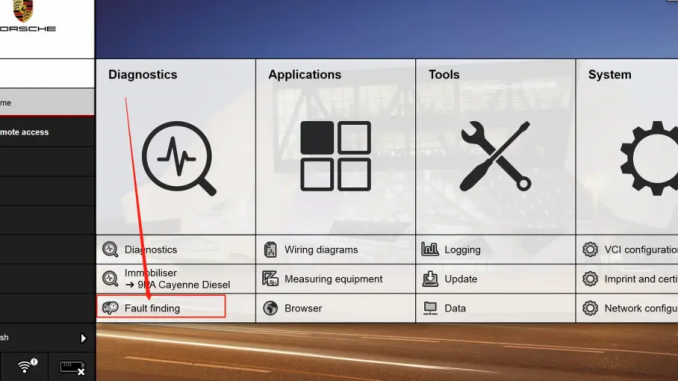
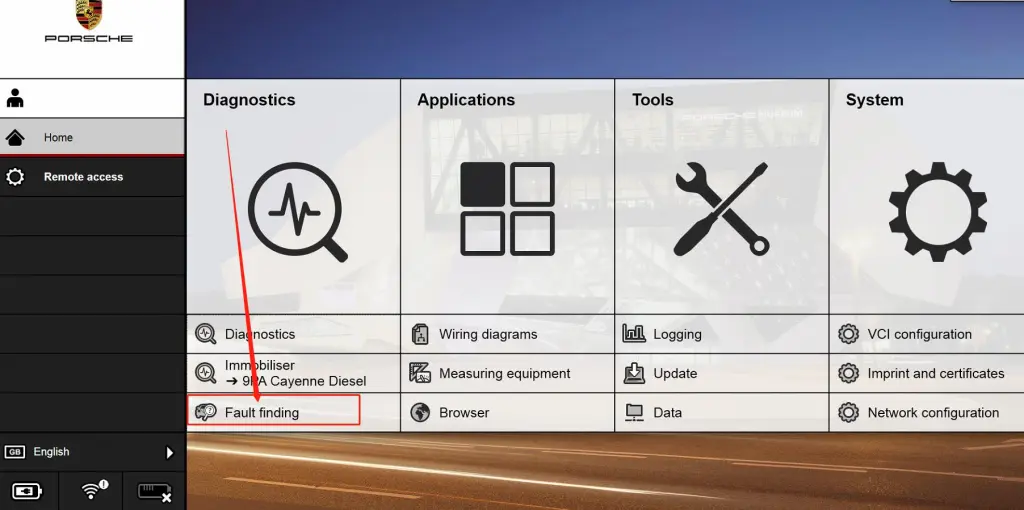
1.Home-Diagnostics-Fault finding
2.Model range-model year-mode type-control unit
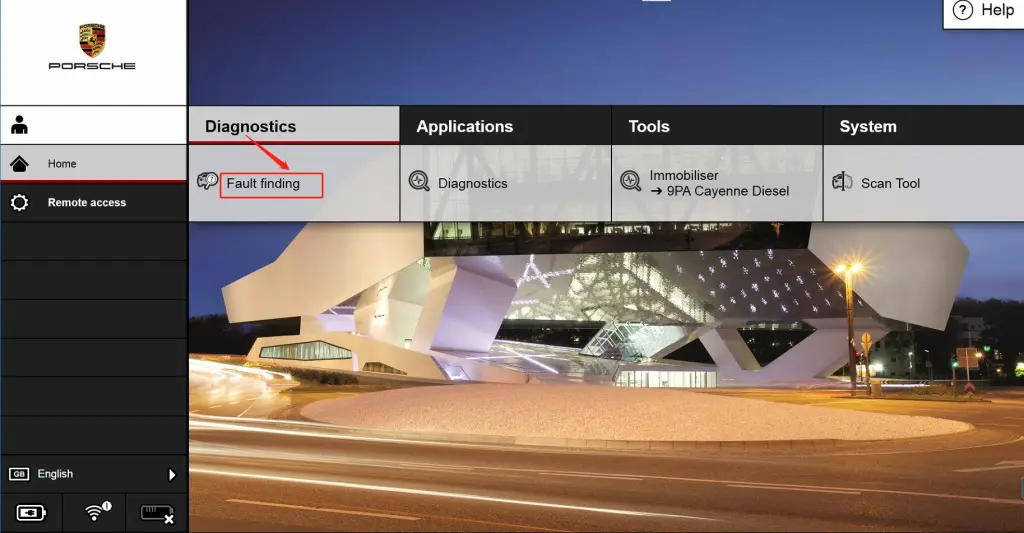
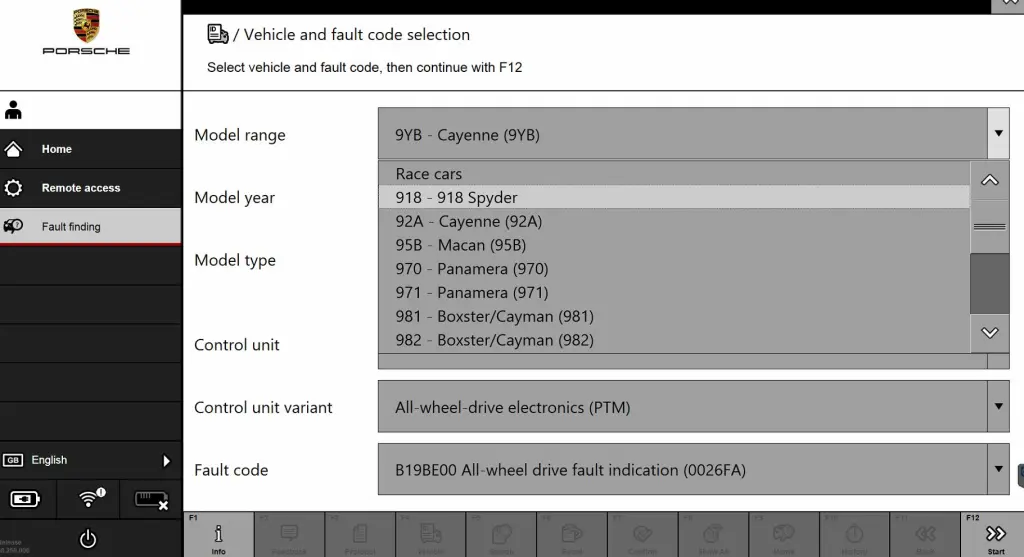
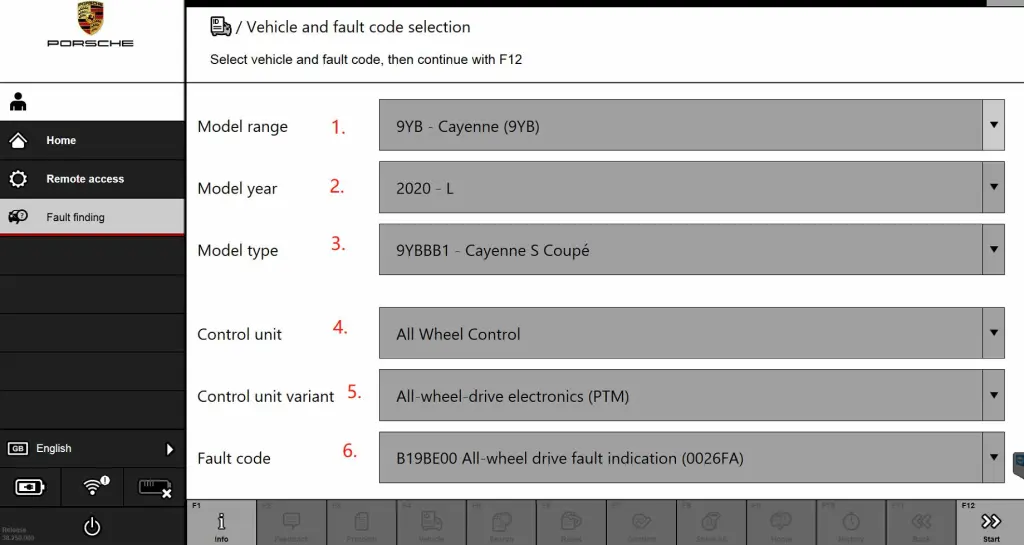
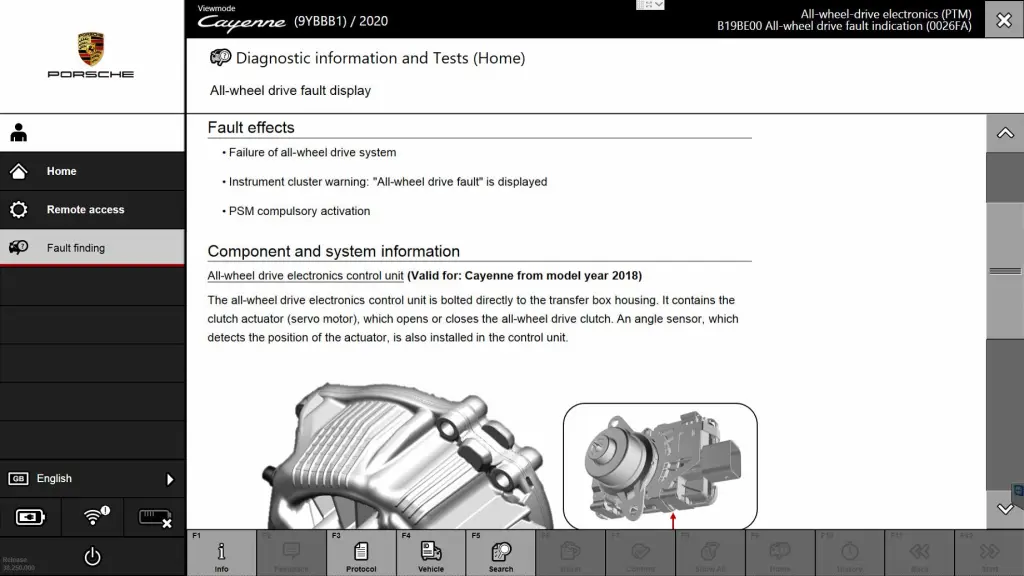
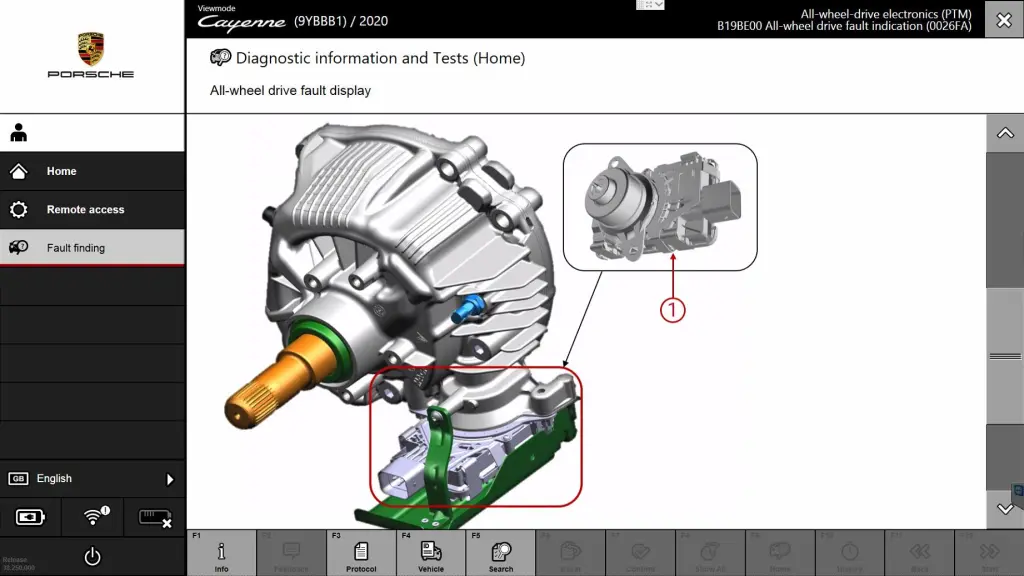
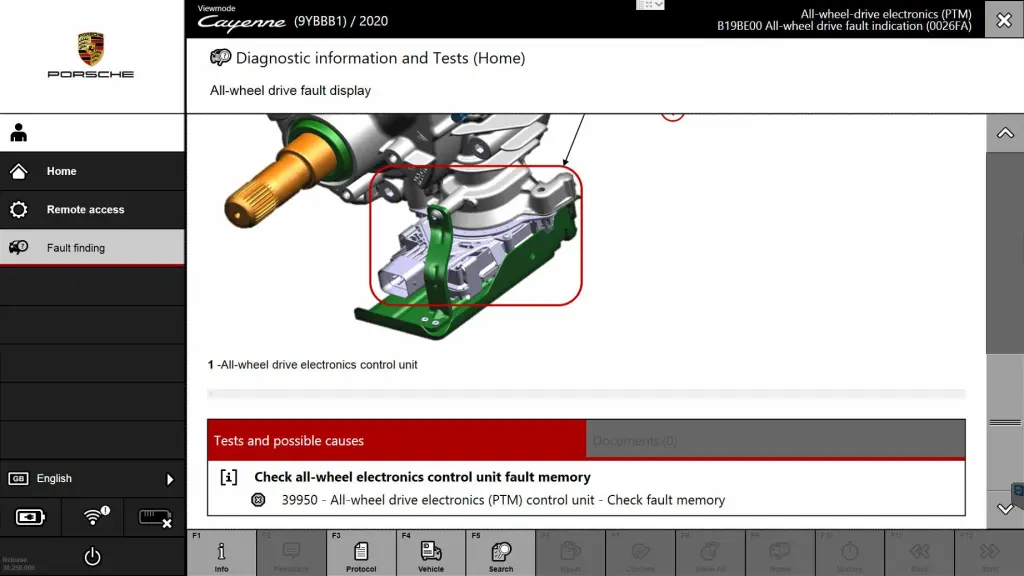
Hope it help
If you want to know more aboutPorsche diagnostic tools, please visithttps://www.obd2tool.com
Posted by: Emily white at
04:37 AM
| No Comments
| Add Comment
Post contains 110 words, total size 8 kb.
February 13, 2023
BMW Diagnostic ToolBMW ICOM Next, ICOM NANO or VXDIAG VCX SE BMW ICOM? Check brief comparison below:
1. ICOM Nano
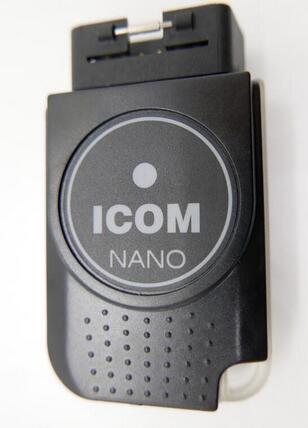
ICOM NANO is the new diagnostic unit for BMW. It’s wireless. Very small size.
Support E series with INPA, F series and G series diagnostic with E-sys.
Drawbacks:
Can’t connect to a hotspot like ICOM NEXT
Just available alone on a separate Wifi
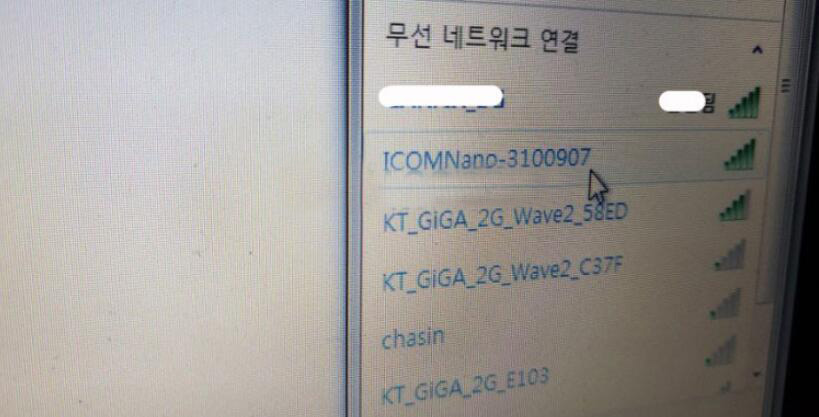
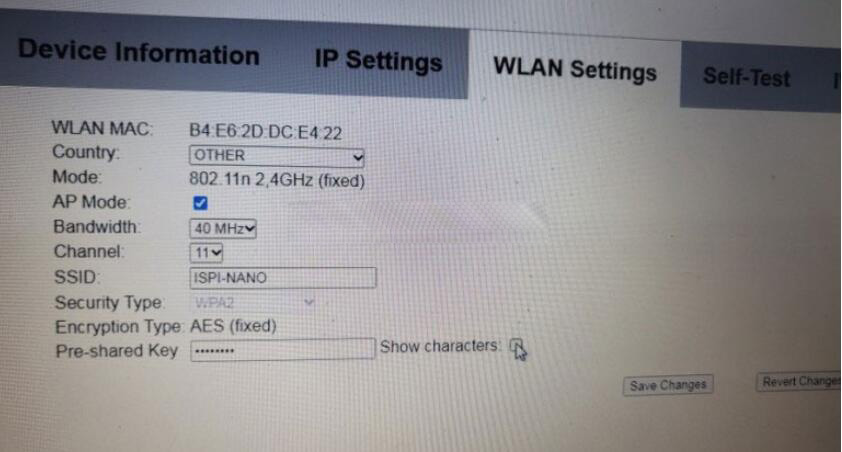
NcsExpert not connected
only for diagnosing, it risky for programming
F series is Only available for body coding.
After all, there was a reason why ICOM NEXT was expensive.
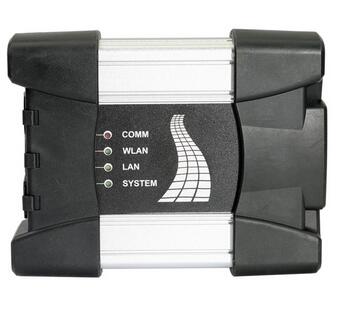
ICOM Next Benefits:
1. Wireless diagnosis connection
2. Ease of use in a shop with multiple active connections
3. Self-hosted DHCP server for ethernet programming
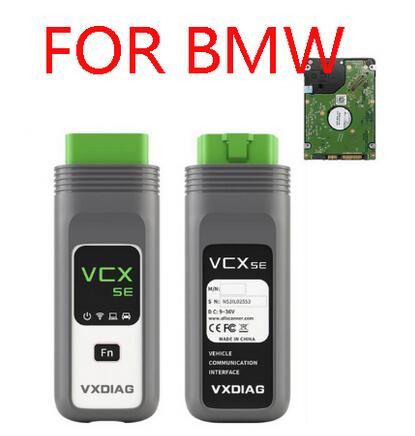
There are different ICOM next clone multiplexers on the aftermarket. All high-quality ICOM Next clones are discontinued due to a lack of chips. Only the ICOM Next using VXDIAG solution is available. So it is a VXDIAG BMW with ICOM Next case indeed. Let’s move to VXDIAG ICOM.
For those with the VCX DoIP:
No need for DHCP server or router, it’s build in.
– WiFi, LAN, USB, Type C to USB, DoNET remote multiple connection ways
– Firmware update is available via VXManager.
– For connection with ista-p you need to download BMW ptt driver from VXDiag, start Pass-Thru app in VXManager and emulate by loading dll. Make sure its set to SAEJ2534
– For connection with ista-d you need to set connect via icom/ethernet local network in ista settings.
If your license is valid you can also use cloud software
– For connection E-sys sometimes ZGW is not detected on first try, select connect via icom/ethernet tcp://<icom ip adress>:50160 than close connection. Now ZGW is available and connection can be made via vin or gateway url.
Posted by: Emily white at
02:32 AM
| No Comments
| Add Comment
Post contains 312 words, total size 5 kb.
32 queries taking 0.0823 seconds, 162 records returned.
Powered by Minx 1.1.6c-pink.

