



May 22, 2022
This instruction show you guide on how to update navigation for Mercedes Benz NTG 5 Star1 systems.
Navigation Map update SD Card works for Mercedes Navigation Garmin / Pilot.
Covers USA/Canada/Mexico/Puerto Rico/Virgin Islands/Bahamas.
PART #: A218 906 84 03 / A2189068403. VERSION 14.0 (MAP 14.0).
THIS CAN ONLY BE USED IN THE AUDIO 20 (Code 522) NTG5 Star1 Systems, see photos.
Please buy SD Card for Benz Navigation Update 2021 HERE on Amazon
Before payment please make sure you have an Audio 20(Code 522) NTG 5 Star1 systems.
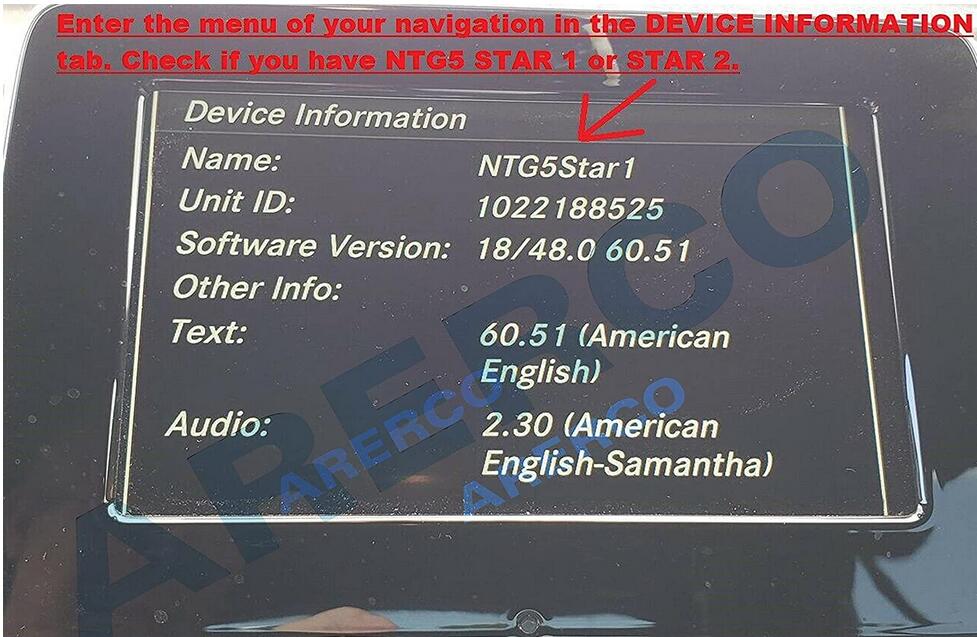
Enter the menu of your navigation in the DEVICE Check if you have NTG5 STAR1 or STAR2.
The Star2 navigation looks the same as the Star1.
For Star2 model,SD card is difference an is NOT compatible with Star1.
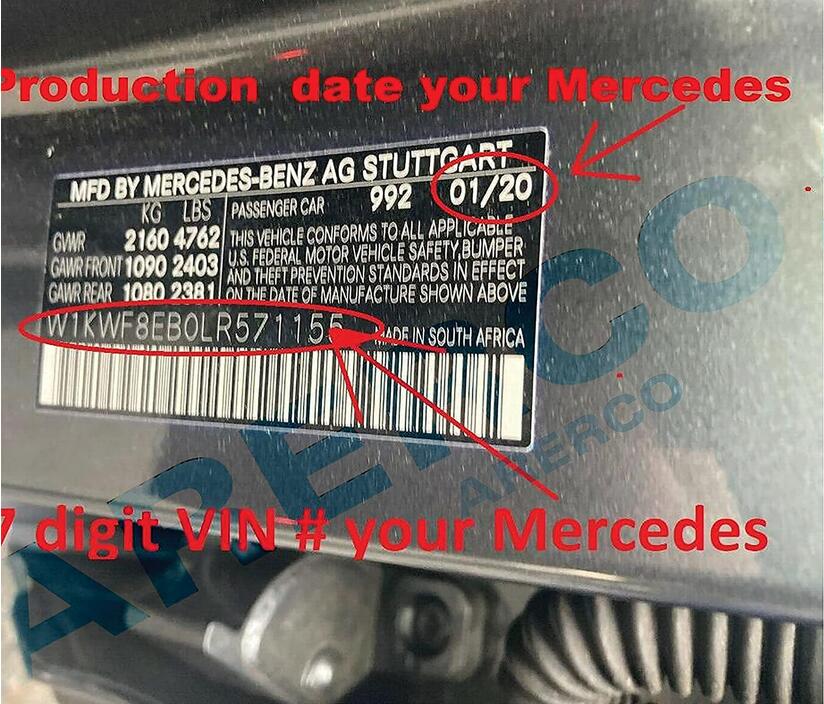
Check the production date of your Car.
Look on your 17-digits VIN stamp on the driver’s side door there will be a date printed on the upper.
COMPATIBILITY LIST:
Mercedes B-Class B250e-(build date on or after 12/2014-2019).
Mercedes CLA 250 / CLA 250 4MATIC / AMG CLA45-(build date on or after 12/2014-2019).
Mercedes CLS 400 / CLS 400 4MATIC / CLS 550 / CLS 550 4MATIC (build date on or after 09/2014-02/201 .
.
Mercedes C-Class C200 / C250 / C300 / C350e / C400-(build date on or after 08/2017-05/201
.
Mercedes C-Class C450 AMG-(build date on or after 08/2017-05/201
Mercedes AMG C43 / AMG C63 / AMG 63 S-(ONLY 201
.
Mercedes GLC 300 / GLC 300 4MATIC / AMG GLC 43-(ONLY 201
.
Mercedes GLC 300 4MATIC Coupe / AMG GLC 43 Coupe (build date 08/2017-2019).
Mercedes AMG CLS63 S-(2015-2020).
Mercedes E-Class E250 / E350 / E400-(2015-2016).
Mercedes AMG E63 / AMG E63 S-(2015-2016).
Mercedes E400 / E550 Coupe-(2015-2016).
Mercedes E400 Cabriolet/ E550 Cabriolet-(2015-2016).
Mercedes GLA 250 / GLA 250 4MATIC / AMG GLA 45-(2016-2019).
Mercedes SLC 300 Roadster / AMG SLC43 Roadster-(2017-2019).
2018 Models ONLY work with vehicles built on/or AFTER 8/2017.
GLC’s MANUFACTURED BEFORE 8/2017 REQUIRE # A2139069903 SD CARD.
A2189068403-DOES NOT WORK WITH WIDESCREEN 10.25″ C-Class Models.
C-CLASS MANUFACTURED BEFORE 8/2017 REQUIRE # A2139069903 SD CARD.
C-CLASS MANUFACTURED ON/OR AFTER 07/2018 REQUIRE # A2139069807 SD CARD.
SD card can be used only in one vehicle.SD card will be locked with cars VIN.
Procedures:
1.Turn vehicle off
2.Locate the SD card slot.SD card slot is usually inside the center of armrest,or it is in the dash.
Consult your owner’s manual for assistance if needed.
3.Remove the old SD card.Your SD card slot is spring-loaded.
To remove the SD card just push the card in and release it.Do not attempt to pull the card to remove it without pushing it in first,as this could cause damage.
4.Insert the new Navigation SD card into the SD card slot until it clicks.
5.Start the engine.Press NAVI to access Navigation function.
When screen shows "ACTIVATING NAVIGATION,PLEASE WAITâ€.
It is pairing the card to the Car,after confirming "YES,THIS IS INTENDED VEHICLEâ€
SD card belongs to this car and card cannot be used with any other vehicle.
More information for Benz trouble repair,please refer to Mercedes Benz Trouble Repair.
Posted by: Emily white at
07:12 AM
| No Comments
| Add Comment
Post contains 519 words, total size 4 kb.
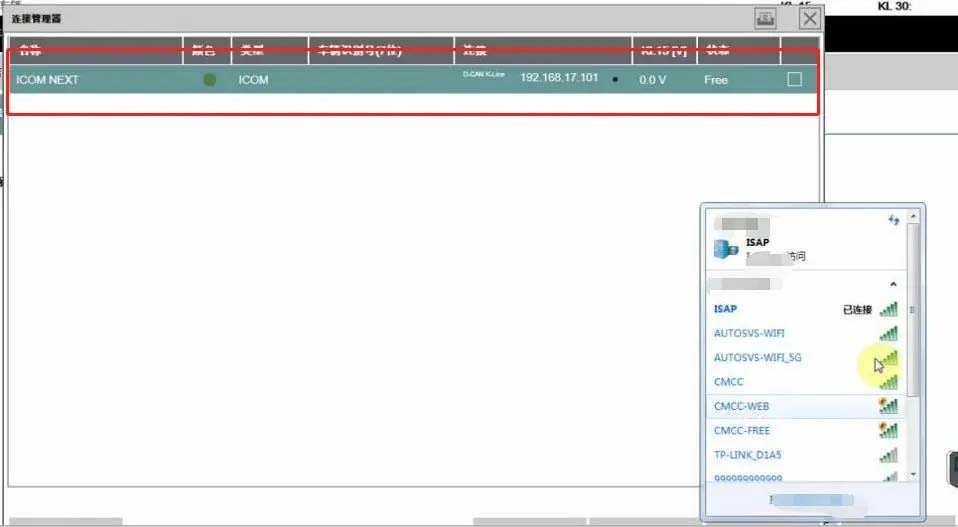
ICOM Next Wireless diagnostic
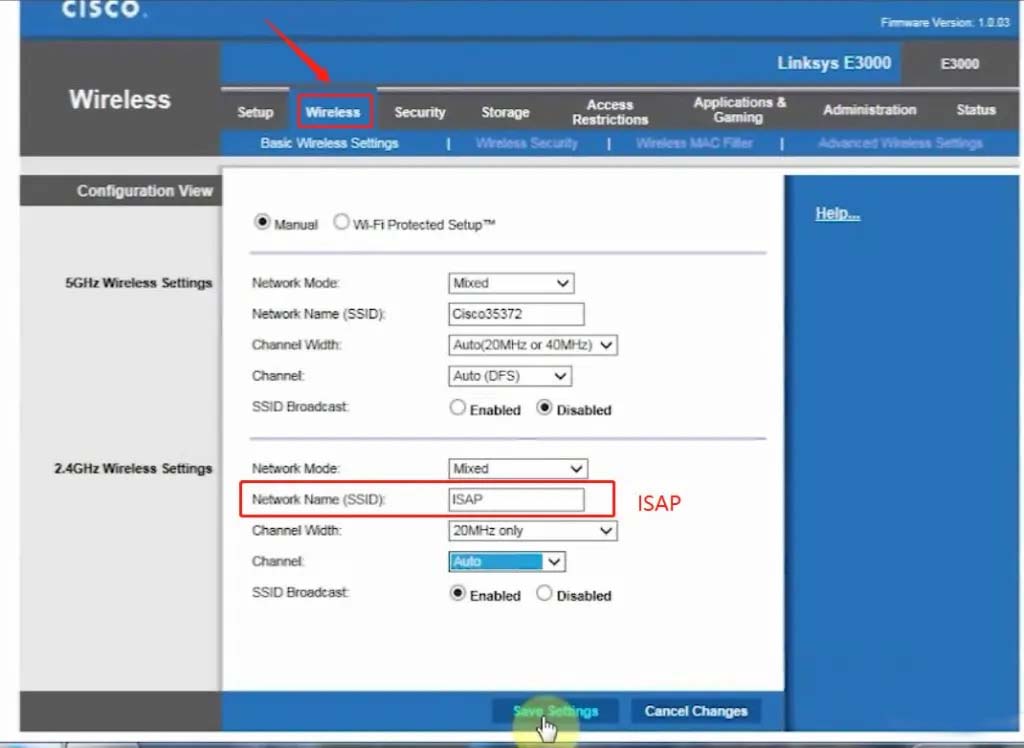
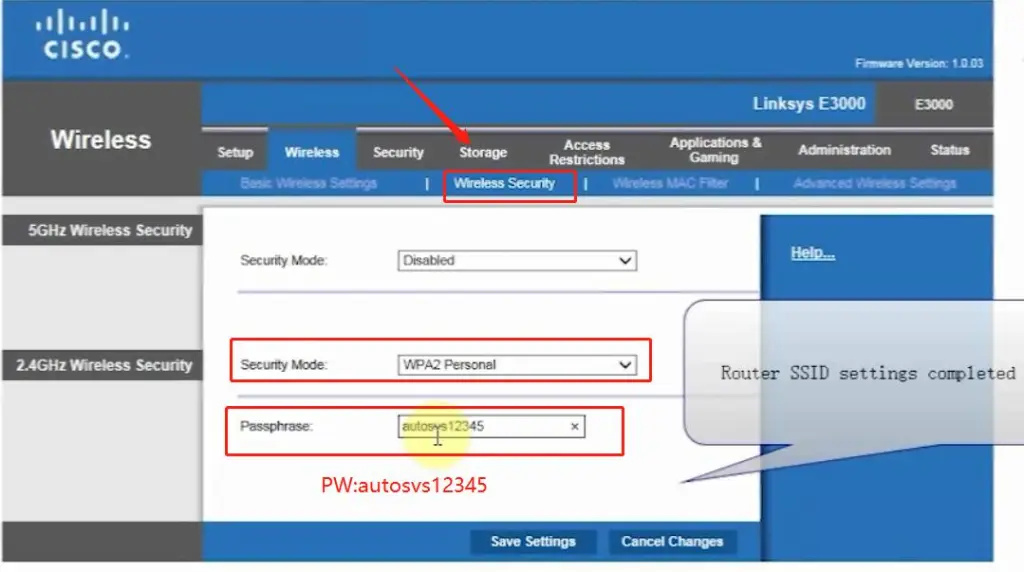
1.Set router wireless, wireless SSID name:ISAP,password:autosvs12345
2.Set ICOM NEXT A wireless, connected to the router,
wireless SSID name:ISAP,password:autosvs12345,
(Same as router setting, After setting the ICOM NEXT need to reconnect to vehicle)
3.BMW diagnostic PC connect to wireless router ISAP, you can start wireless diagnosis.
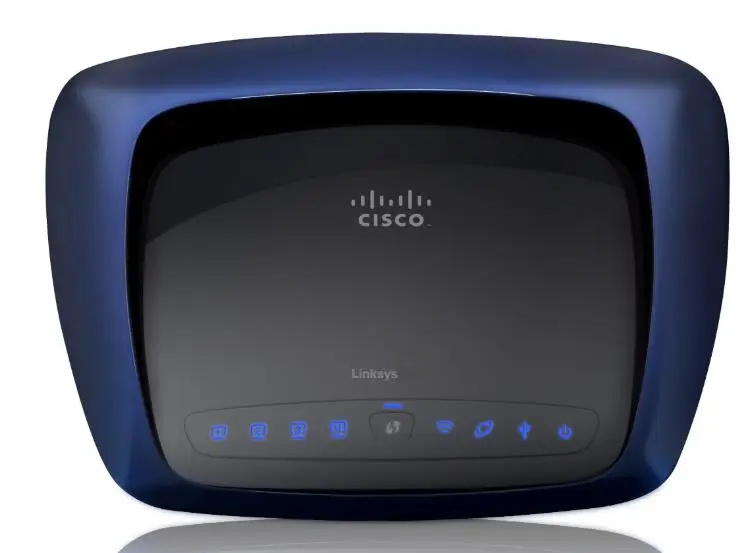
1.Configuration router
2.Configuration ICOM NEXT A
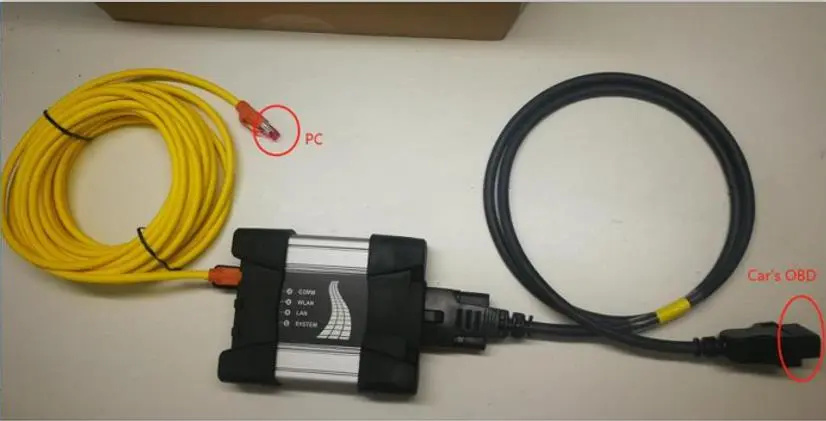
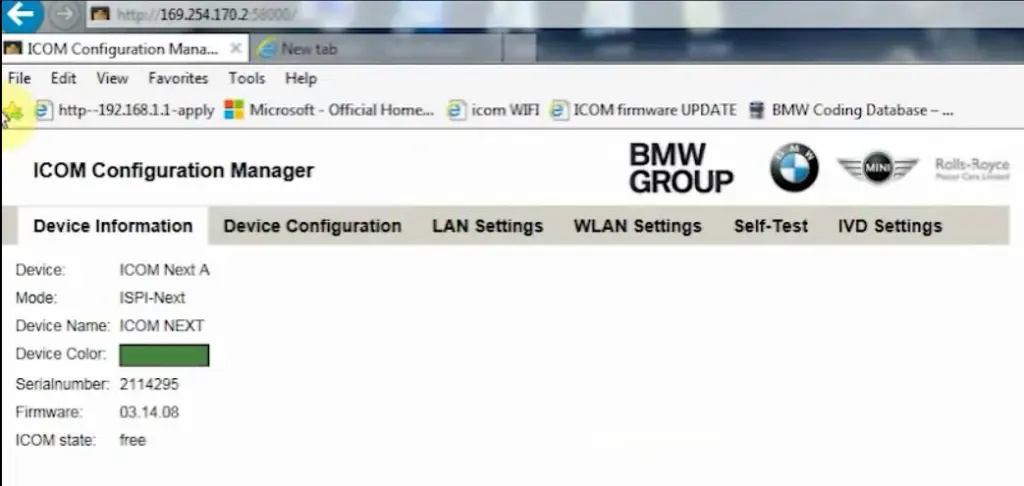
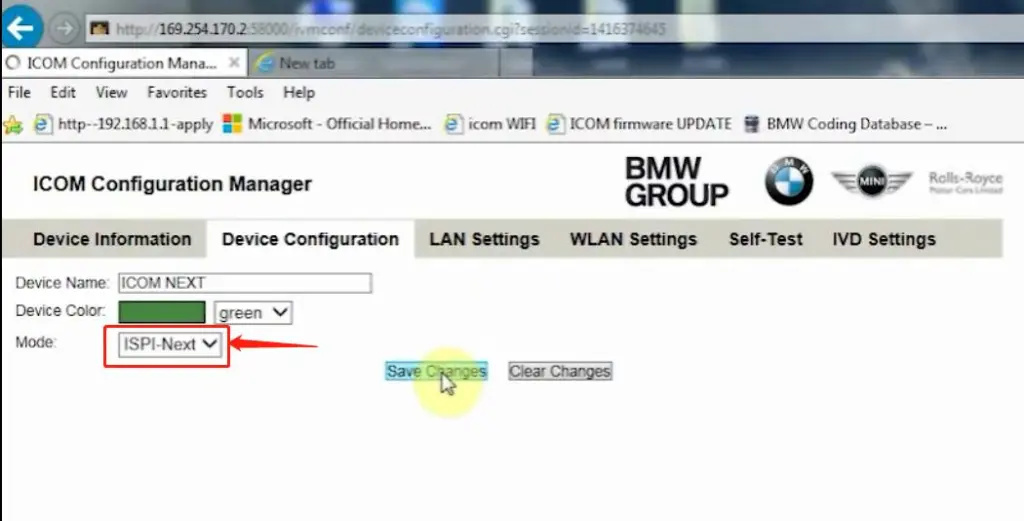
3.Same as the router configuration;
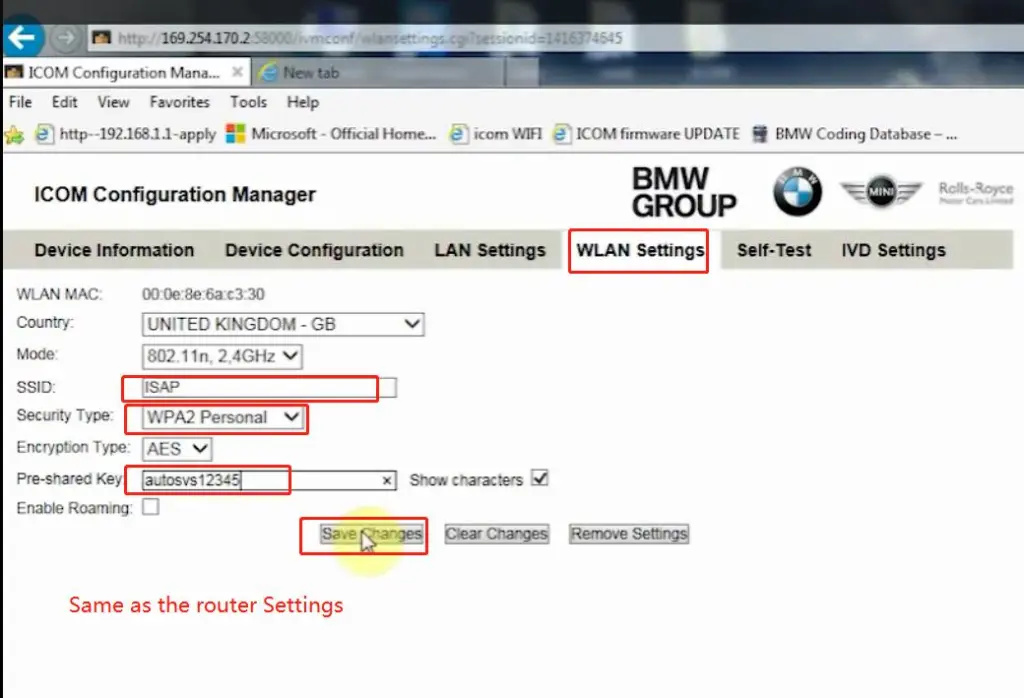
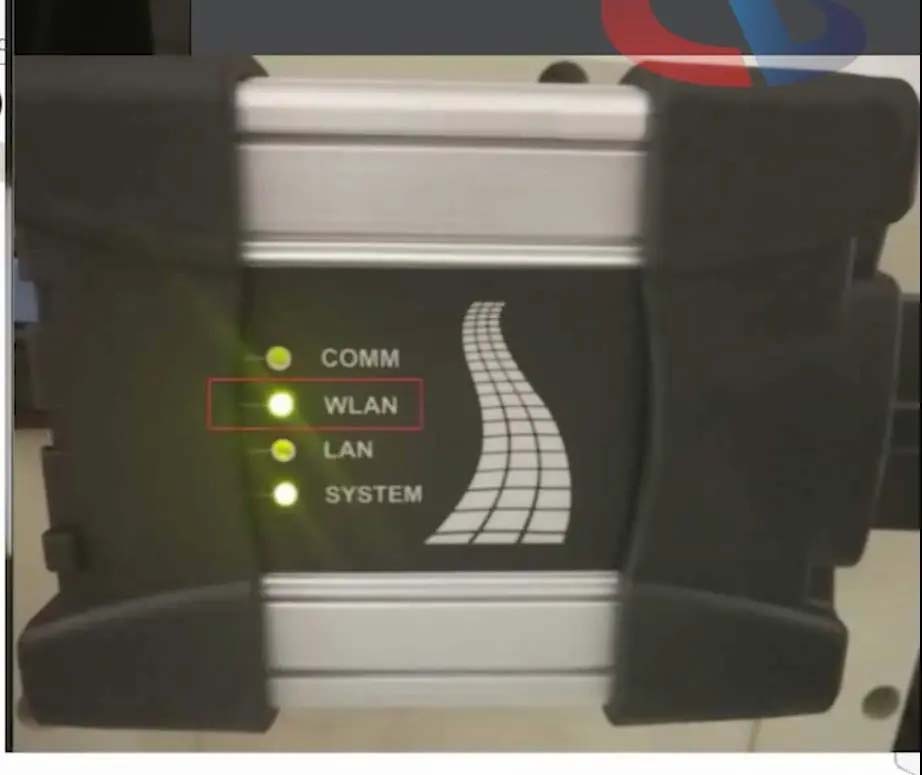
4.After ICOM NEXT configuration is completed, you need to reconnect, ICOM NEXT will automatically open the WLAN connection function;
5.Connect ISAP WIFI;
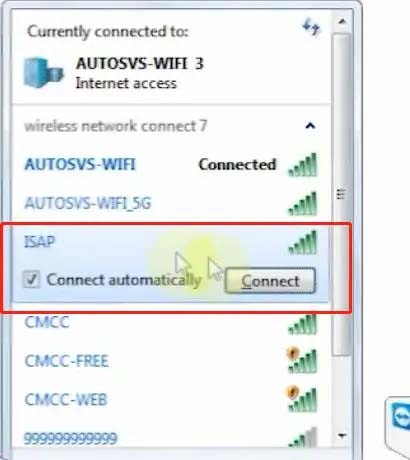
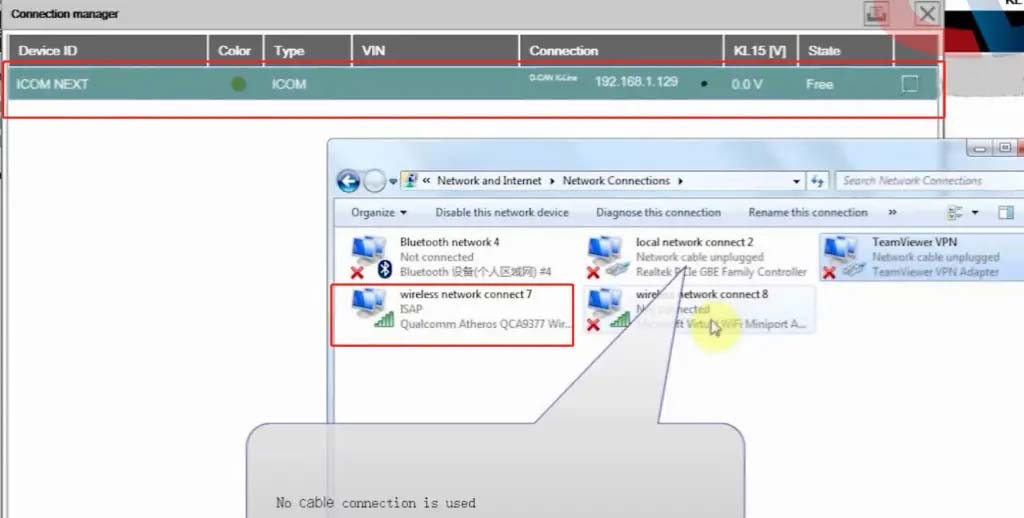
6.After the ISAP WIFI connection is successful, you can use the ISTA diagnostic test
Posted by: Emily white at
06:56 AM
| No Comments
| Add Comment
Post contains 104 words, total size 5 kb.
32 queries taking 0.0417 seconds, 160 records returned.
Powered by Minx 1.1.6c-pink.

