



January 30, 2023
How to Get BMW ECU Validation Service viaISTA BMWAfter Replacing Certain Control Modules
SITUATION
With the introduction of the new Headunit HU-H3 (MGU Media Graphics Unit), we have a new way protection mechanism against tampering.
If one or more of the following components MGU, TCB Telematic Communication Box (ATM-02), RSE Rear Seat Entertainment, or KOMBISP18 instrument cluster needs to be replaced the secure connection between them must be re-established. In order to re-establish the connection, an electronic certificate must be created from the BMW backend and imported into the Vehicle.
CAUSE
After the replacement of one of the mentioned Modules the Control Module needs a valid certificate in order to communicate with the other Modules.
CORRECTION
With the introduction of ISTA 4.14.1x, the Ecu validation service certificates can be created in manual steps.
Models:
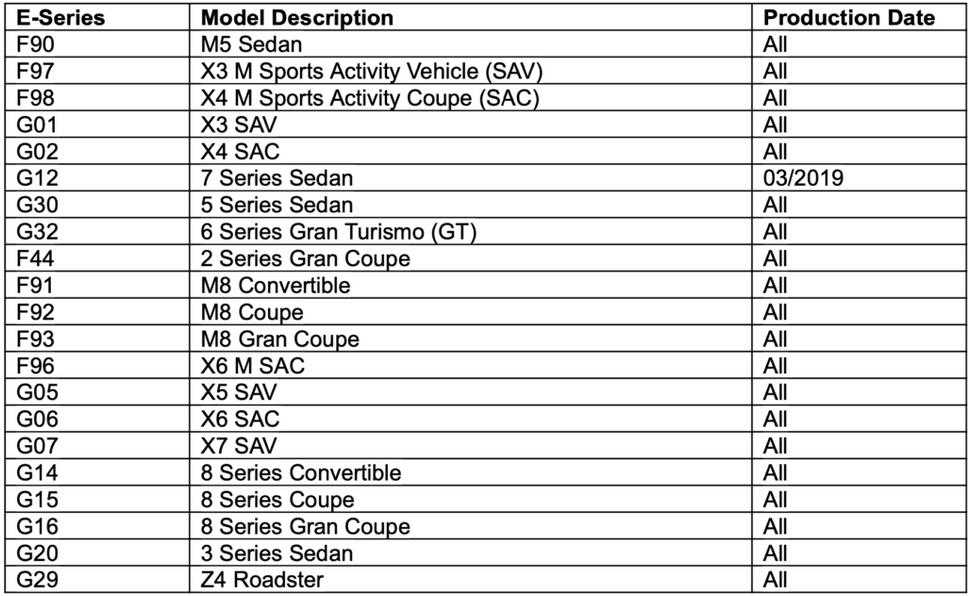
Step-by-Step Guidance for BMW ECU Validation Service By ISTA BMW
1. Go to "vehicle management” => "Control unit exchange”
2. Select the exchanged control unit in the "After ” tab and then calculate the measures plan. Then ISTA will automatically include the control unit validation in the measures plan.
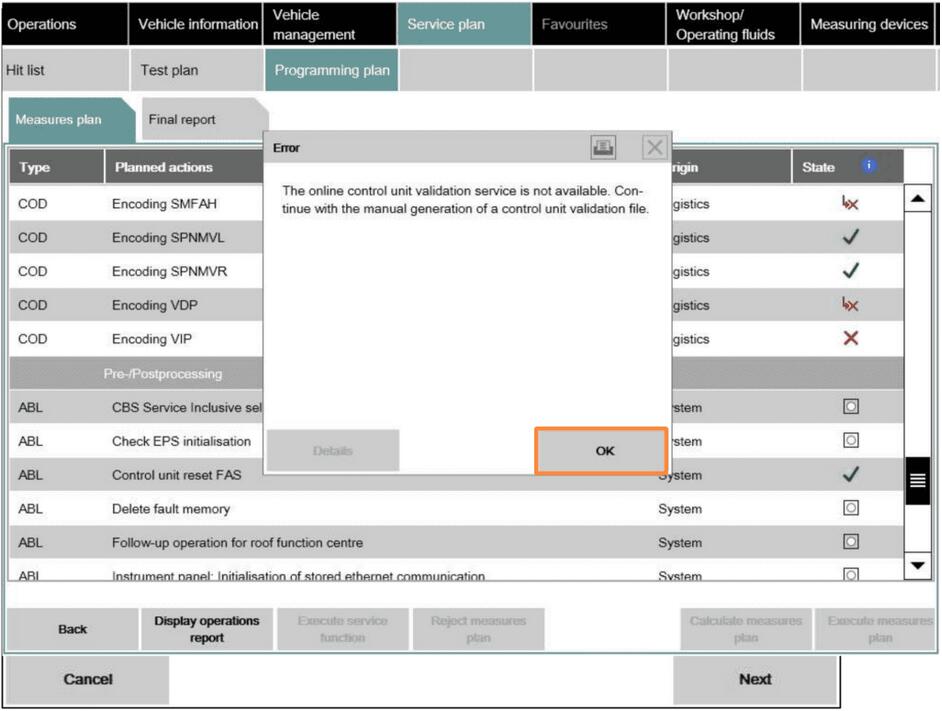
3. If ISTA cannot carry out automatic validation, a warning about the absence of control unit validation is displayed.
4. By clicking on the "Next” button, ISTA generates the required ValidationRequest_VIN_xxx.json file and opens a file dialogue to save it. The file needs to be stored and uploaded via DCSnet later.
5. ISTA displays a note confirming that the file was successfully saved. At this point, you can exit the process using the "Cancel” button. After processing the measures plan, the session can be closed.
6. Open DCSnet and select "ECU Validation Service” under "Service”. You can order the ECU validation service through us per VIN.
If the ECU Validation Service Menu is not showing up, please check your Access Roles in DEMS. If the ECU validation Service Role is missing, please contact your DEMS Administrator for getting access to it.
7. Upload the previously generated and downloaded ValidationRequest_VIN17_xxx.json file
8. The System checks the file, and after a few seconds, a new
ValidationRequest_VIN17_xxx_response.json file will be offered for downloading. This is
subsequently required by ISTA. Start a new ISTA session
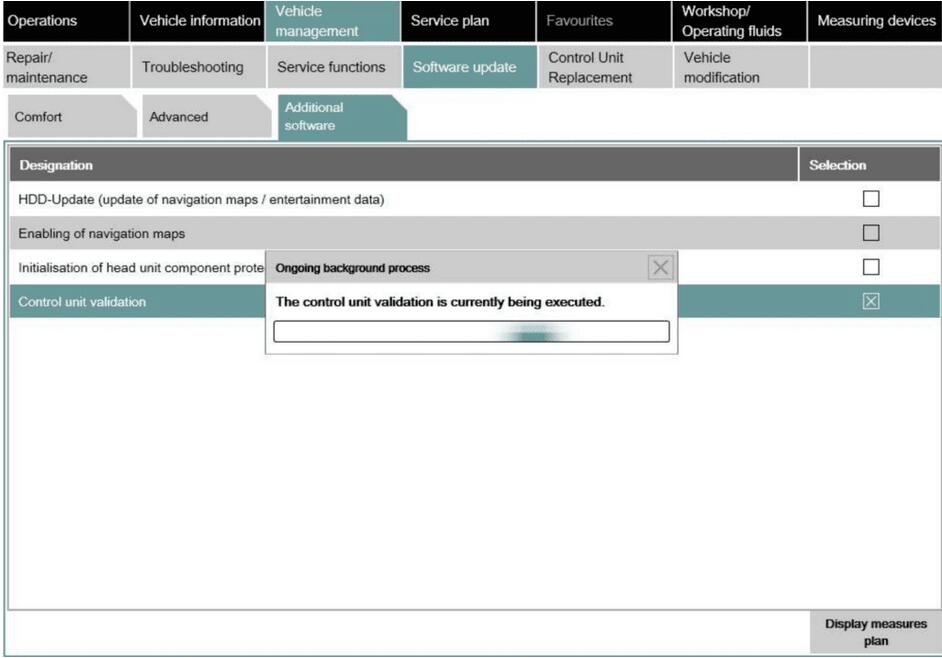
9. In order to import the JSON file, select "ECU Validation” in the "Additional Software” tab.
10. In order to import the validated file, select "Import control unit validation file manually” and confirm with "OK”.
11. Select the file ValidationRequest_VIN17_xxx_response.json in the file dialogue and confirm with "Continue”. (the file will be supplied by us if you ordered the ECU Validation Service from team autosvs.com)
12. The file is written into the vehicle and checked.
Ecu validation service Summary:
With the introduction of the new Headunit HU-H3 (MGU Media Graphics Unit), there is a new protection mechanism against tampering. If one or more of the following components needs to be replaced, the secure connection between them must be re-established:
• MGU TCB Telematic Communication Box (ATM-02);
• RSE Rear Seat Entertainment;
• KOMBISP18 instrument cluster.
Prior to re-establishing this connection, an Ecu validation service electronic certificate must be created in the BMW backend for importing into the Vehicle. After the replacement of one of the mentioned Modules, the Control Module needs a valid certificate for it to communicate with the other Modules. With the introduction of ISTA 4.14.1x, the BMW Ecu Validation Service certificates can be created either automatically, or alternatively in manual steps.
How to Get BMW ECU Validation Service viaISTA BMWAfter Replacing Certain Control Modules
SITUATION
With the introduction of the new Headunit HU-H3 (MGU Media Graphics Unit), we have a new way protection mechanism against tampering.
If one or more of the following components MGU, TCB Telematic Communication Box (ATM-02), RSE Rear Seat Entertainment, or KOMBISP18 instrument cluster needs to be replaced the secure connection between them must be re-established. In order to re-establish the connection, an electronic certificate must be created from the BMW backend and imported into the Vehicle.
CAUSE
After the replacement of one of the mentioned Modules the Control Module needs a valid certificate in order to communicate with the other Modules.
CORRECTION
With the introduction of ISTA 4.14.1x, the Ecu validation service certificates can be created in manual steps.
Models:
Step-by-Step Guidance for BMW ECU Validation Service By ISTA BMW
1. Go to "vehicle management” => "Control unit exchange”
2. Select the exchanged control unit in the "After ” tab and then calculate the measures plan. Then ISTA will automatically include the control unit validation in the measures plan.
3. If ISTA cannot carry out automatic validation, a warning about the absence of control unit validation is displayed.
4. By clicking on the "Next” button, ISTA generates the required ValidationRequest_VIN_xxx.json file and opens a file dialogue to save it. The file needs to be stored and uploaded via DCSnet later.
5. ISTA displays a note confirming that the file was successfully saved. At this point, you can exit the process using the "Cancel” button. After processing the measures plan, the session can be closed.
6. Open DCSnet and select "ECU Validation Service” under "Service”. You can order the ECU validation service through us per VIN.
If the ECU Validation Service Menu is not showing up, please check your Access Roles in DEMS. If the ECU validation Service Role is missing, please contact your DEMS Administrator for getting access to it.
7. Upload the previously generated and downloaded ValidationRequest_VIN17_xxx.json file
8. The System checks the file, and after a few seconds, a new
ValidationRequest_VIN17_xxx_response.json file will be offered for downloading. This is
subsequently required by ISTA. Start a new ISTA session
9. In order to import the JSON file, select "ECU Validation” in the "Additional Software” tab.
10. In order to import the validated file, select "Import control unit validation file manually” and confirm with "OK”.
11. Select the file ValidationRequest_VIN17_xxx_response.json in the file dialogue and confirm with "Continue”. (the file will be supplied by us if you ordered the ECU Validation Service from team autosvs.com)
12. The file is written into the vehicle and checked.
Ecu validation service Summary:
With the introduction of the new Headunit HU-H3 (MGU Media Graphics Unit), there is a new protection mechanism against tampering. If one or more of the following components needs to be replaced, the secure connection between them must be re-established:
• MGU TCB Telematic Communication Box (ATM-02);
• RSE Rear Seat Entertainment;
• KOMBISP18 instrument cluster.
Prior to re-establishing this connection, an Ecu validation service electronic certificate must be created in the BMW backend for importing into the Vehicle. After the replacement of one of the mentioned Modules, the Control Module needs a valid certificate for it to communicate with the other Modules. With the introduction of ISTA 4.14.1x, the BMW Ecu Validation Service certificates can be created either automatically, or alternatively in manual steps.
How to Get BMW ECU Validation Service viaISTA BMWAfter Replacing Certain Control Modules
SITUATION
With the introduction of the new Headunit HU-H3 (MGU Media Graphics Unit), we have a new way protection mechanism against tampering.
If one or more of the following components MGU, TCB Telematic Communication Box (ATM-02), RSE Rear Seat Entertainment, or KOMBISP18 instrument cluster needs to be replaced the secure connection between them must be re-established. In order to re-establish the connection, an electronic certificate must be created from the BMW backend and imported into the Vehicle.
CAUSE
After the replacement of one of the mentioned Modules the Control Module needs a valid certificate in order to communicate with the other Modules.
CORRECTION
With the introduction of ISTA 4.14.1x, the Ecu validation service certificates can be created in manual steps.
Models:
Step-by-Step Guidance for BMW ECU Validation Service By ISTA BMW
1. Go to "vehicle management” => "Control unit exchange”
2. Select the exchanged control unit in the "After ” tab and then calculate the measures plan. Then ISTA will automatically include the control unit validation in the measures plan.
3. If ISTA cannot carry out automatic validation, a warning about the absence of control unit validation is displayed.
4. By clicking on the "Next” button, ISTA generates the required ValidationRequest_VIN_xxx.json file and opens a file dialogue to save it. The file needs to be stored and uploaded via DCSnet later.
5. ISTA displays a note confirming that the file was successfully saved. At this point, you can exit the process using the "Cancel” button. After processing the measures plan, the session can be closed.
6. Open DCSnet and select "ECU Validation Service” under "Service”. You can order the ECU validation service through us per VIN.
If the ECU Validation Service Menu is not showing up, please check your Access Roles in DEMS. If the ECU validation Service Role is missing, please contact your DEMS Administrator for getting access to it.
7. Upload the previously generated and downloaded ValidationRequest_VIN17_xxx.json file
8. The System checks the file, and after a few seconds, a new
ValidationRequest_VIN17_xxx_response.json file will be offered for downloading. This is
subsequently required by ISTA. Start a new ISTA session
9. In order to import the JSON file, select "ECU Validation” in the "Additional Software” tab.
10. In order to import the validated file, select "Import control unit validation file manually” and confirm with "OK”.
11. Select the file ValidationRequest_VIN17_xxx_response.json in the file dialogue and confirm with "Continue”. (the file will be supplied by us if you ordered the ECU Validation Service from team autosvs.com)
12. The file is written into the vehicle and checked.
Ecu validation service Summary:
With the introduction of the new Headunit HU-H3 (MGU Media Graphics Unit), there is a new protection mechanism against tampering. If one or more of the following components needs to be replaced, the secure connection between them must be re-established:
• MGU TCB Telematic Communication Box (ATM-02);
• RSE Rear Seat Entertainment;
• KOMBISP18 instrument cluster.
Prior to re-establishing this connection, an Ecu validation service electronic certificate must be created in the BMW backend for importing into the Vehicle. After the replacement of one of the mentioned Modules, the Control Module needs a valid certificate for it to communicate with the other Modules. With the introduction of ISTA 4.14.1x, the BMW Ecu Validation Service certificates can be created either automatically, or alternatively in manual steps.
Posted by: Emily white at
03:00 AM
| No Comments
| Add Comment
Post contains 1714 words, total size 19 kb.
January 15, 2023
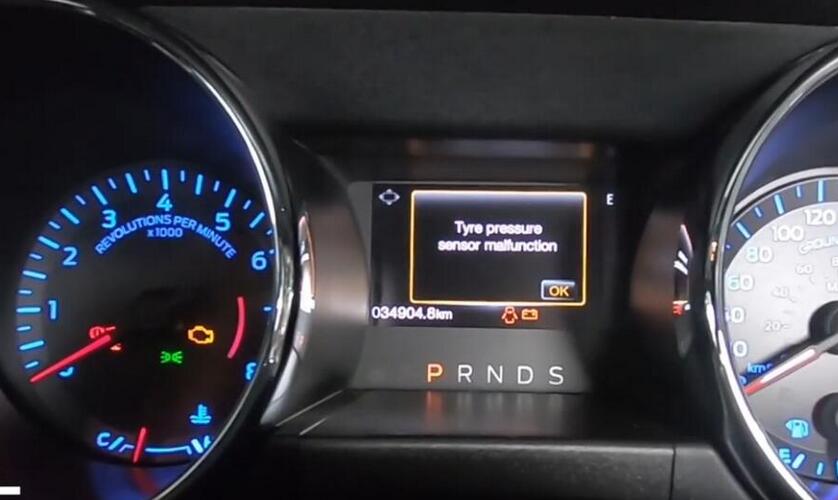
After TMPS sensors replacement,you will get error message "Tyre pressure sensor malfunction” on dashboard,now you need to perform TPMS sensor learning for your Ford Mustang.In this post car-auto-repair.com show you guide on how to useLaunch X431 deviceto do TPMS sensor learning.
Preparations:
Launch X431 PROS
Launch X431 TSGUNwith TPMS
Procedures:
Use Launch X431 Pro to perform a full diagnose for Ford Mustang
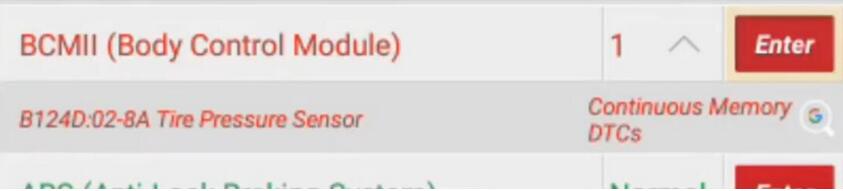
Trouble code found B124D
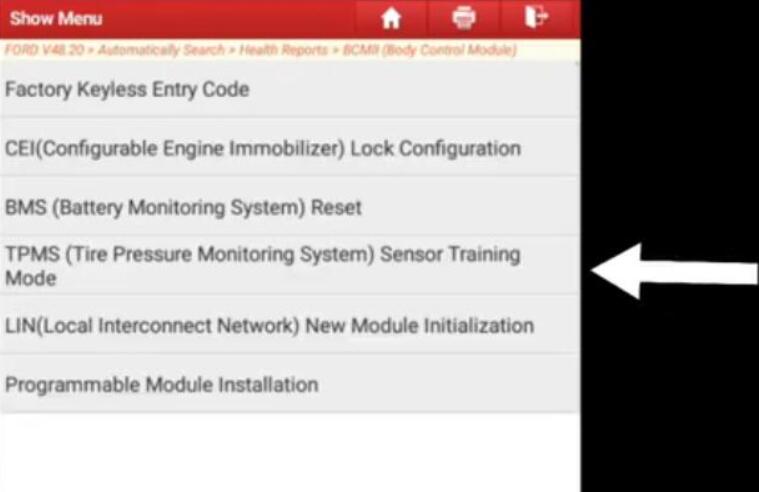
Go to special functions to select "TPMS sensor training mode”
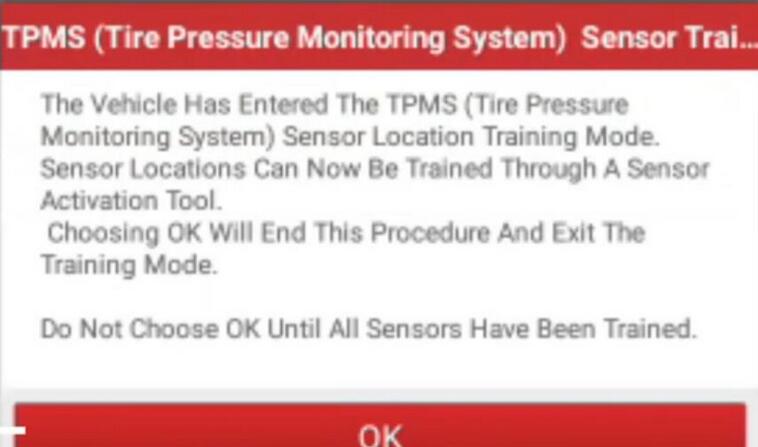
Car will horn while enter to training mode
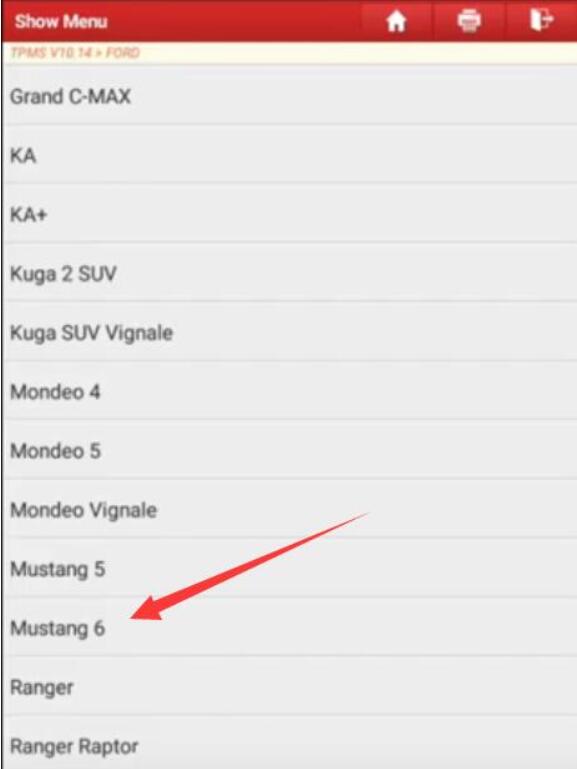
Select "TPMS” on Launch X431,select your car models
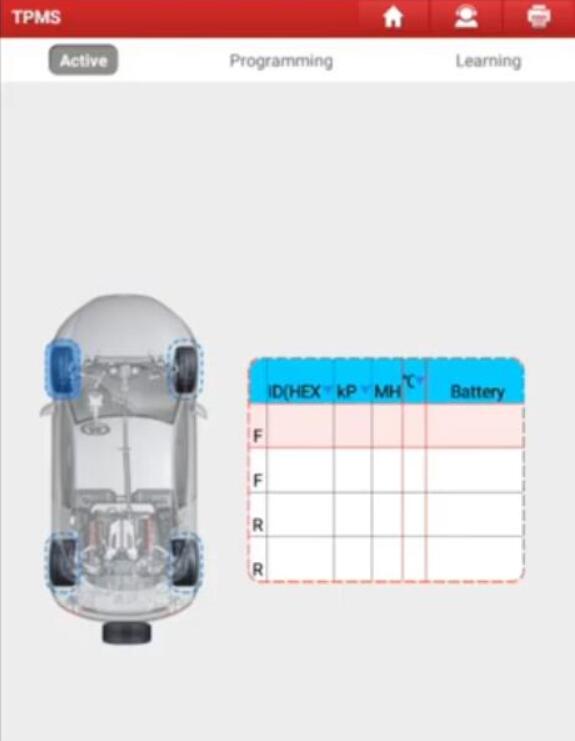
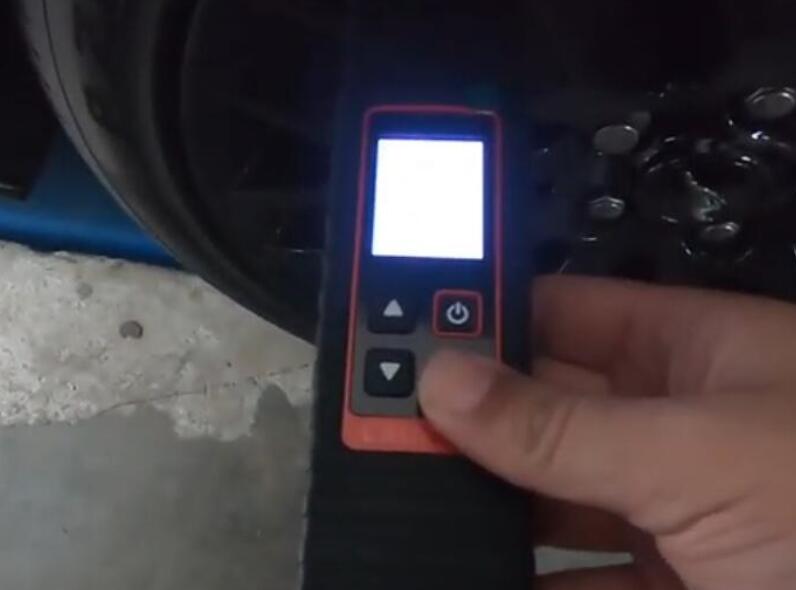
Use X431 TSGUN to do learning for 4 sensors
Car will horn while success learn the sensor
After all done make a test drive the sensors will work well.
More test report about Launch X431 please check:Launch X431 Test Report
Posted by: Emily white at
02:08 PM
| No Comments
| Add Comment
Post contains 143 words, total size 5 kb.
January 09, 2023

System and Hardware Requirements
Before you get things started, make sure that you’ve prepared the following:
1. ENET cable
2. E-sys software with EST token and pin
3. Psdzdata Lite version
4. Laptop with at least Windows 7 OS and 16 GB of available space
5. Coding Cheat Sheet for your vehicle model
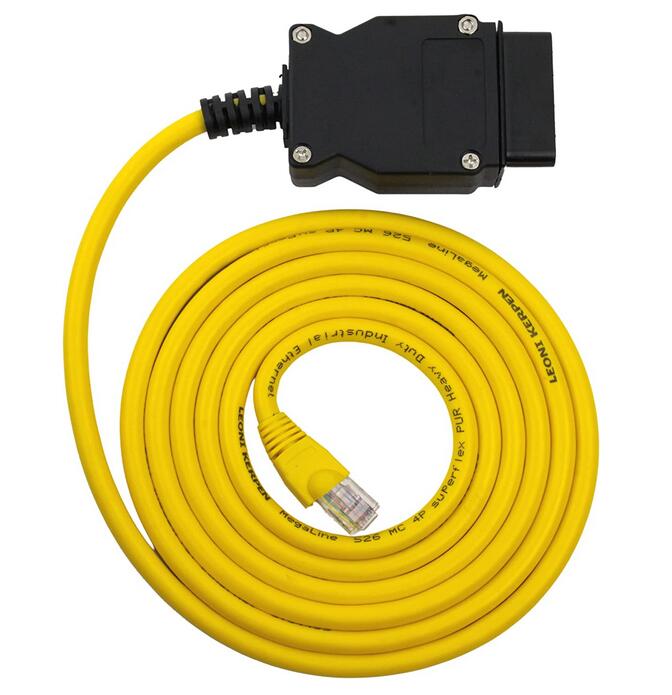
The ENET cable is built with an RJ45 connector on one side, that is used to connect with the ethernet port of your laptop computer, and a 16-pin connector on the other side for connecting to the OBD port of your vehicle. Make sure to get one with a shielded connector from a reliable seller. This will protect you from electrical noise interference and other connection interruptions that may affect the coding process.
What is BMW Esys

Commonly used functions of BMW E sys: ECU FLASH programming/code (one
ECU or more ECUs), FA, FSC browsing and editing, ECU file editing, ECU
function activation (need to use E sys launch pro or e sys plus), ECU
status, Vehicle integration level, navigation certificate status, etc.
BMW E sys can connect cars: BMW brand cars (BMW Mini, BMW Motors, Rolls Royce), F, G, I series
Connectivity for BMW E sys: BMW ICOM Next (recommended), ENET cable/ENET WIFI (recommended), BMW ICOM NANO, BMW ICOM A1 A2 A3.
Download and Install the E-sys Software
The E-sys software is mainly used for coding the BMW F Series , the new 1
Series, 3 Series, 5 Series, 7 Series , GT, and X3 models. Here’s how to
download and install E-sys:
1. Download the E-sys software for free here: E-sys Software Download
2. Extract the downloaded file using Winrar or with any similar extraction software.
3. Double click on the installation file, which is an exe file with a filename like "E-Sys_Setup_3_26_1_b42487.exe”.
4. Follow the default settings that will install E-sys to the recommended default location, shown as C:\EC-Apps\ESG\E-Sys.
5. Set the data path for E-sys. You can follow the recommended default location which is at C:\Data.
6. Click "Next” until the installation process starts. Then click "Finish” when the installation process is done.
How do I set up BMW ESYS?
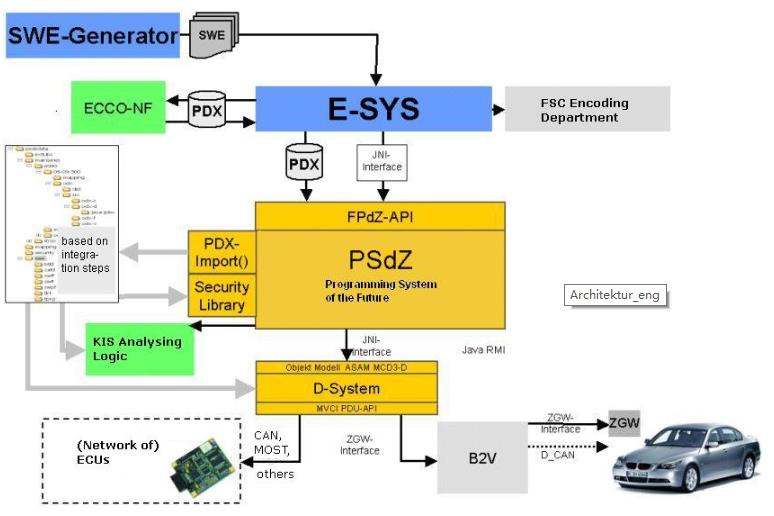
Schematic diagram of how BMW E-sys works
1. E sys Home;
2. E-sys selects the car series;
3. E-sys data setting;
4. E-sys Expert mode;
5. E-sys FA editor;
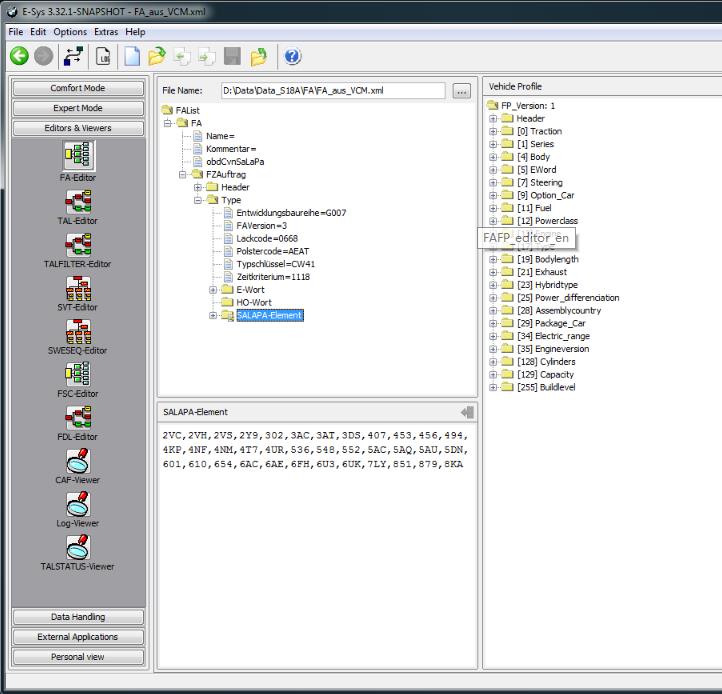
6. E-sys comfort Mode.
Download and Install Psdzdata
The Psdzdata contains all the data needed for BMW coding, flashing, and
firmware updates. Installing Psdzdata is an important final step in the
E-sys installation process. The E-sys software will be useless without
these essential data. Here’s how to download and install Psdzdata:
1. Psdzdata is available in two versions – the Full and the Lite
version. If you only want to do coding, Psdzdata Lite is recommended
because it will save you some space – approximately around 1GB compared
to 20GB of the Full version.
2. Extract the downloaded file using Winrar or with any similar
extraction software. You will find a new folder with the name "psdzdata”
after the extraction process.
3. Copy the "psdzdata” folder and paste it to the C:\Data location. This
will overwrite and replace the existing empty "psdzdata” folder in the
location with the extracted "psdzdata” folder that contains all the data
files that you need for BMW coding.
Coding Preparations
After you have successfully installed the software and tools that you
need for BMW coding, you need to prepare these things prior to the
actual coding process:
1. Before you proceed to code your BMW, you need to be familiar with and
sure of the things that you want to do with your vehicle. Do not
proceed if you are unsure of what to do. Do not attempt to skip or guess
the essential steps of the process. Check out this beginner’s guide if
you wish to review the process.
2. If you are familiar with the initial process, you should have a basic
idea of the specific coding changes that you want to apply to your
vehicle. To help you execute these changes, you should have a copy of
the BMW Coding Parameters for your vehicle using a BMW Coding Cheat
Sheet. Here’s a list of Cheat Sheets available online:
* BMW Cheat Sheet for F/I/G Series
* BMW Cheat Sheet for Each Chassis
3. Make sure that your laptop computer is fully charged to avoid
connection issues or interruptions during the coding process. If your
vehicle is not connected to an external charger, be sure that your motor
is running to maintain the battery voltage needed to power the ECU and
HVAC for an extended coding session. For longer coding sessions, it is
advisable that you have a car battery charger in hand.
4. Disable any Bluetooth or wireless connection running on your laptop.
There should be no other external connections that may affect the
communication between your laptop and your vehicle.
5. Disable your laptop’s Firewall, Antivirus, and other third-party
security programs that may interfere with the connection and the coding
process.
6. Switch off any car audio or video that may drain your battery fast.
7. Set your LAN adapter in your computer at DHCP instead of using a static IP.
8. Create back up files of the original settings of your vehicle. You
can use these files to revert to your original settings in case
something goes wrong with the changes that you have applied. Check out
this guide on how to create a full backup of your car’s configuration
files.
Configure and Connect E-sys to your Vehicle
To get the coding process started, you need to configure and connect the
E-sys software to your computer. Here’s the process on how to do it:
1. Connect one end of the ENET cable to the ethernet port of your laptop and the other to the OBD2 port of your vehicle.
2. Turn on your vehicle’s ignition but do not start the engine.
3. Your laptop will start the process of connecting to your vehicle.
Wait for 60 seconds or a few minutes until the computer recognizes the
connection. You should see a connection with a yellow exclamation mark
over your laptop’s network icon.
4. Run the E-sys software that you’ve previously installed on your laptop.
5. On the top row of the E-sys interface, you’ll see a "Connect” button. Click on it to connect the laptop with your vehicle.
6. A dialog box will open. Then select the TargetSelector for the specific BMW model of your car.
7. Choose "Connection via VIN” and click "Connect”.
8. A message will pop up confirming that a successful connection has
been established. The software will remember the "Connection via VIN”
setting for future connections.
9. Well done! You have successfully set up the ENET cable and E-sys software. You can now start coding.
Tools and Accessories When Coding Your BMW
Check out these tools and accessories that you can also buy while doing some coding work.
Posted by: Emily white at
08:57 AM
| No Comments
| Add Comment
Post contains 1249 words, total size 10 kb.
32 queries taking 0.0486 seconds, 162 records returned.
Powered by Minx 1.1.6c-pink.

