



December 27, 2020
Tedjs, our resident tech guy, has kindly provided this insight into
the modern mechanic’s Swiss Army Knife – GM’s Tech 2 (or Tech II as
you’d write it if search engines didn’t exist.)
I’d like to thank Ted for taking the time and giving us this insight
into the little electronic doodads that control our Saab vehicles.
Hopefully this will be the first of a few articles on this.
Enjoy the journey….
——
If you really want to know what your Saab is thinking about when you’re
motoring around town this holiday season, hopefully Santa will have
dropped the following pieces of hardware off for you:
A GM Tech II scan tool
A CANdi module so the Tech II can talk to the high speed network on your Saab
And of course the Saab software program for the Tech II
GM kindly supplies our school with all this hardware. All I needed was my Saab to give the Tech II something to do. My 2007 9-3 Aero has the turbocharged V6 and six speed automatic, so that is what will be referenced here.
A little background before we dig in….
Here in the United States all vehicles communicate via a standardized or OBD II style data link connector, so if you crawl under the dash of your 1996 and up Saab you should find the connector. This is where the scan tool plugs in and becomes part of the data network.
This connector allows any OBD II compatible scan tool to ‘talk’ to
the vehicle. Those of you who live in the USA that do state mandated
emission testing may find that they now just plug into your vehicle for
verification of the vehicles emission compliance.
Ultimately, all of powertrain components such as the engine and
electronically shifted transaxle terminate on pins 6 and 14 of the DLC
on what is a high speed or Controller Area Network (CAN). The CAN
network is a standard high speed communication protocol that is used on
most vehicles sold in USA and allows devices ‘on the data bus’ to
communicate at speeds of 500 kilobits per second. This becomes critical
when transmission and engine control modules must chat with each other
to control the powertrain.
One thing we did not have with the original Tech II package was the
pictured CANdi module. With the advent of higher speed data networks,
Tech II needed an additional piece of hardware to talk to modern
vehicles which is the CANdi or Controller Area Network Diagnostic
Interface. The ‘interface’ essentially digests all the information that
is sent from the vehicle and sends it to the Tech II in manageable
pieces so the scan tool can process the information.
Tech II itself has been around since 1996 and in my opinion is one of the best scan tools on the market for a GM vehicle. Some manufactures have gone to PC based tools and although these are cheaper from a hardware standpoint (you buy the PC) – they are simply not very ergonomic if you are driving around with one on a daily basis.
Tech II software for Saab is loaded onto a 32MB via GM’s Techline Information System or TIS software.
GM’s TIS application is now available via the web, which means no more
software disc’s to distribute to dealers, which is nice. The technician
needs only to select and load the software onto the Tech II.
It is possible to load a number of applications on the Tech II depending on what you need the tool to do. The North American application covers all domestic vehicles and of course – Saab automobile covers current Saab 9-3 and 9-5 vehicles.
After selecting options – diagnostic software is loaded onto the tool.
Once Saab software is finally loaded -the user is presented with the Saab Tech II splash screen
The heart of Saabs 2.8L V6 is a Bosch ME9 engine management system.
The ME9 ECM regulates engine torque by controlling intake air charge,
fuel and ignition timing. Once programmed to the vehicle – the
technician can ‘see’ all sorts of data that might provide information
that would help them troubleshoot and repair a vehicle.
Below is an Engine Control data list with key on, engine off.
One might be looking at this information to determine if engine coolant
temperature (ECT) is reading properly at maybe a cold start. The
temperature sensor measures the engine temperature and the ECM uses the
reading to deliver more fuel to the engine when the engine is cold,
control the cooling fans and perform OBD II diagnosis among other
things. Thermostat diagnosis is performed by the sensor to ensure the
engine is reaching proper temperature within a predetermined time frame.
ME9 uses a ‘drive by wire’ setup so when the driver depresses the
accelerator pedal a ‘throttle request’ is sent to the ECM. ME9 can now
decide how much torque to deliver to the wheels and open the throttle,
increase turbo boost and modify fuel and spark to accommodate demands of
the driver. A technician may be viewing this data to check and see if
the requested boost is available to the engine.
The charge air pressure sensor (shown below right) is the sensor that is
used to monitor this information. Air leaks on some Saab vehicles are
presented to a technician as ‘air mass deviation from calculated’.
Tech II also has the ability to do some output tests on the vehicle. One test I have not seen on other vehicles is a compression test on the scan tool. A compression test is generally done to check if a cylinder is sealing. The Tech II can initiate what is essentially a relative compression test. The crankshaft position sensor is used to ‘look’ for fluctuations in crankshaft speed and readings are given to the technician.
The Tech II fromOBD2TOOL is needed for much more than powertrain controls. Screens shown below show the scan tool communicating with the active handling system on the vehicle. The electronic stability program ‘communicates’ with ME9 via the high speed network and might tell the engine controller to reduce torque if it decides that is the best strategy to get your Saab pointed back in the right direction.
Aligning your Saab at home (hope not!) or taking it in to get it going straight again? Hopefully the technician knows that the stability program needs to be recalibrated so that it ‘knows’ the car has been aligned and the wheels are pointing straight ahead. Once alignment adjustments are made, Tech IIAuto Scanner Tool can tell the module that the wheels are pointing straight ahead.
Well, that’s all for now. In addition to having a lot of fun driving
my Saab, I am learning more about all the technology that rides around
with the vehicle. I will be assembling information over my next teaching
semester as there is a lot of technical information the vehicle that I
can use in my presentations. I will pass on to Swade periodically as
time permits.
Questions are welcome.
Posted by: Emily white at
11:36 AM
| No Comments
| Add Comment
Post contains 1183 words, total size 8 kb.
December 26, 2020
Autel MaxiIM 608,A fast-access option for OBD II/EOBD vehicle diagnosis is available on the Vehicle Menu screen. This option presents a quick way to check for DTCs,isolate the cause of an illuminated malfunction indicator lamp (MIL), check monitor status prior to emissions certification testing, verify repairs, and perform a number of other services that are emissions-related. The OBD direct access option is also used for testing OBD II/EOBD compliant vehicles that are not included in the Diagnostics database.
Functions of the diagnostics toolbar buttons at the top of the screen are the same as those available for specific vehicle diagnostics.
Autel IM608 General Procedure
To access the OBD II/EOBD diagnostics functions
1. Tap the Diagnostics application button from the MaxiIM Job Menu.
The Vehicle Menu displays.
2. Tap the EOBD button. There are two options to establish communication with the vehicle.
Auto Scan – when this option is selected the
diagnostic tool attempts to establish communication using each protocol
in order to determine which one the vehicle is broadcasting on.Protocol –
when this option is selected the screen opens a submenu of various
protocols. A communication protocol is a standardized way of data
communication between an ECM and a diagnostic tool. Global OBD may use
several different communication protocols.
3. Select a specific protocol under the Protocol option. Wait for the OBD II Diagnostic Menu to appear.
NOTE
Tapping the button displayed beside the function name opens a bubble with additional function information.
4. Select a function option to continue.
DTC & FFD
I/M Readiness
Live Data
On-Board Monitor
Component Test
Vehicle Information
Vehicle Status
Autel MaxiIM IM608 Highlights:
1.Free Update Online for 1 Year, after one year, it will cost $1100
2.Warranty for 12 Months.
3.ADVANCED IMMO & KEY PROGRAMMING
4.OE-Level Diagnostic and Service Functions as MaxiSYS Pro
5.with XP400 and MaxiFlash JVCI for ECU Programming
6. Language: English, Spanish and French. (We can ship to Spain and France now)
7. Autel have released BMW CAS4/CAS4+ through OBD update!
Autel MaxiIM IM608 Features:
The IM608 is an OE-Level Diagnostic and Service Functions as MaxiSYS Pro
with additional software and accessories for IMMO and key programming.
1. Extraordinarily powerful Cortex A7+A15 six-core processor
2. 10.1-inch LED capacitive touch screen with 1920×1200 resolution
3. Internal reliable 64GB On-board Memory for better performance
4. Built-in 8-megapixel rear camera with autofocus and flashlight
5. 802.11 a/b/g/n/ac Wi-Fi to access your favorite web resources
6. Open source Android Operating System for fast boot-up and multitasking
7. Powerful combination of advanced key programming/all systems diagnostics/advanced maintenance services
8. Professional key programming equipped with XP400 key programmer and MaxiFlash ECU programmer for complete Immo coverage
9. Smart mode for guided and automated key learning
10. Expert mode for advanced key learning
11. Read PIN/CS (all key lost), generate key, key learning, remote learning
12. IMMO ECU reset/adaptation, refresh/coding
13. Read/write transponder data, ECU/MCU/EEPROM data (eg. 9S12 encryption chip), IC card, detect remote frequency
14. Powerful OE level diagnostics for more than 80 US, Asian and European makes and models
15. Complete capabilities for codes, live data, active test, ECU information, adaptation, matching, coding etc.
16. All special functions, EPB, DPF, SAS, Oil reset, BMS, TPMS sensor ID relearn, etc.
Posted by: Emily white at
07:21 AM
| No Comments
| Add Comment
Post contains 542 words, total size 4 kb.
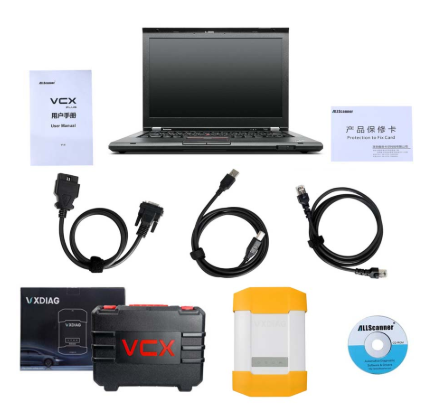
Question:
After updating my Allscanner VXdiag full firmware, I run BMW ISTA-D
4.18.20 ISTA-P 3.66.100 software, it failed to communicate with my
cars.Any ideal?
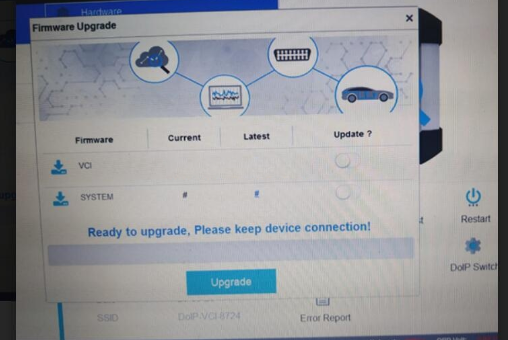
Solution:
You should do by following below four steps:
1.Download the latest VX manager
2.Connect computer to the device
3.Upgrade the firmware and DOIP firmware
4.Finally, connect to your car and test it
Lastest VX Manager 1.8.1.1012 .exe
https://mega.nz/file/vUAGyDxS#D0VWizy3huB8nK8dtL1FIPgfhMrJGo-isxAjirSlKjg
No pass
Provided by the VXDIAG official, security
Customer feedback:
It is solved. I installed the new VX manager version and updated the firmware.
Thanks
Posted by: Emily white at
07:13 AM
| No Comments
| Add Comment
Post contains 111 words, total size 2 kb.
32 queries taking 0.0214 seconds, 162 records returned.
Powered by Minx 1.1.6c-pink.

