



February 19, 2018
At times the Tech 2 will need to be connected to a terminal. Reasons for connection to a terminal include the following:
* Transfer of vehicle data (calibration information, "snapshot,†etc.) from the Tech 2 to the terminal
* Transfer of vehicle calibration data from the terminal to the Tech 2
* Transfer of data (software update, etc.) from the terminal to the Tech 2
Before connecting automotive diagnostic equipment Tech 2 to the terminal, the following steps should be taken:
* Make sure the RS-232 cable (P/N 3000110) is attached to the Tech 2 RS-232 port located on the left
side of the Tech 2.

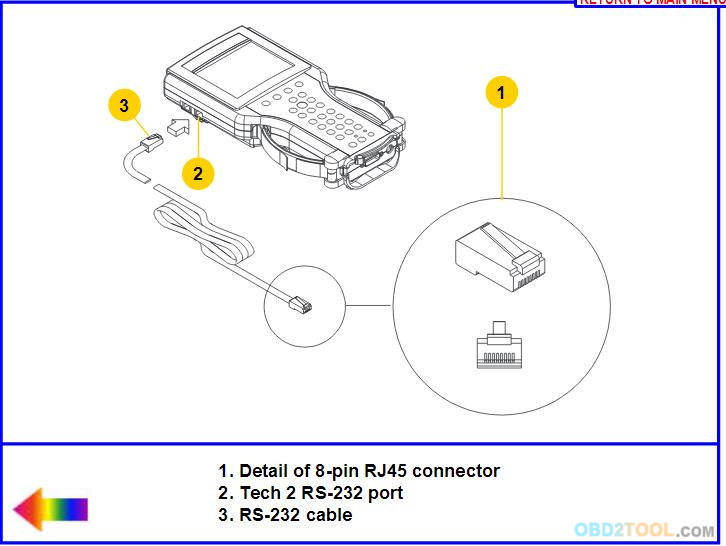
* Make sure the appropriate power supply is connected to the DLC cable power jack connector, or to the
power jack connector at the bottom of the Tech 2 from OBD2TOOL.

* Make sure the PCMCIA card is fully inserted into the upper slot at the top of the Tech 2.
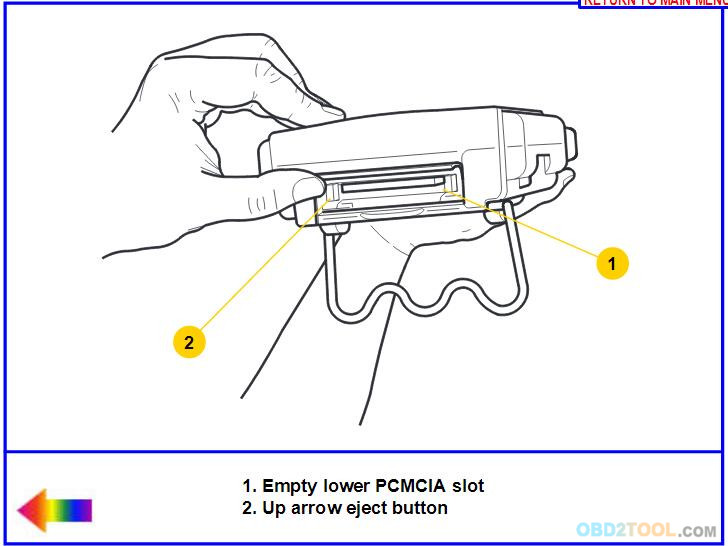
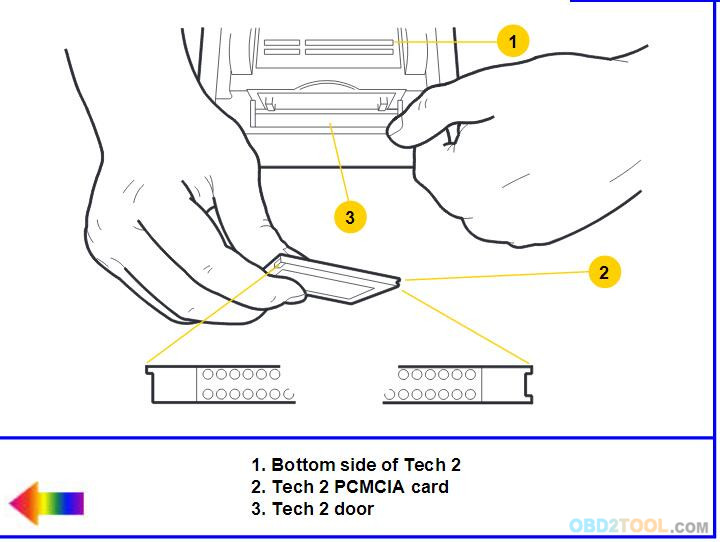
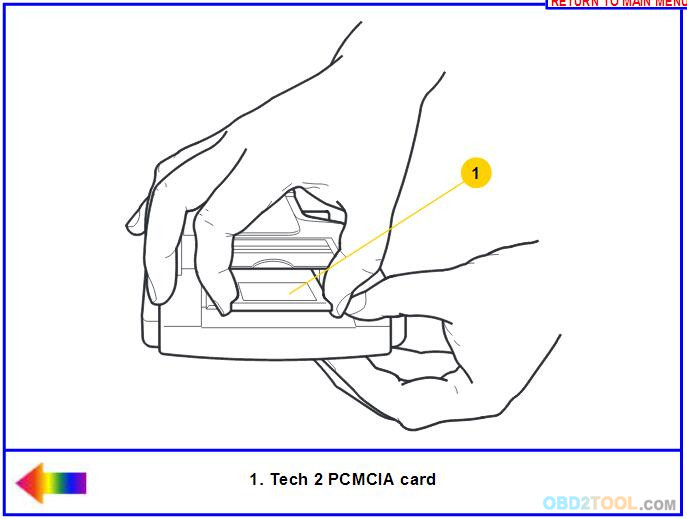
* Make sure the CANdi module is not connected to the Tech 2.
NOTICE
Always use the Tech 2 NAO power supply (P/N 3000113) when connecting the
Tech 2 to a terminal. It is also acceptable to connect the power cable
to the vehicle cigarette lighter receptacle.
http://cheapobd2tool.com/2018/02/01/tech-2-connection-to-techline-terminal/
Posted by: Emily white at
03:01 PM
| Comments (1)
| Add Comment
Post contains 211 words, total size 3 kb.
Posted by: Fred at January 18, 2019 07:13 AM (THmIx)
37 queries taking 0.0222 seconds, 164 records returned.
Powered by Minx 1.1.6c-pink.

